Pay for AI models using USDT via OpenClaw
Connect to OpenAI, Anthropic, Gemini, and more
A few weeks ago, an open-source project called OpenClaw landed on GitHub. Within days, hundreds of thousands of developers had starred it.
Here is why they find it useful.
Most AI tools live inside a chat window. You type something. They reply. That is it.
OpenClaw works differently. You connect it to WhatsApp or Telegram, and suddenly you have an assistant that can actually do things:
Check your email and draft replies
Search for flights and book them
Write code and save it to a folder
Open your browser and go to websites
Tasks that usually have you switching between half a dozen apps, handled in one place.
But OpenClaw needs access to AI models from companies like OpenAI, Anthropic, or Google to work. And every major AI provider asks for the same thing. A credit card. An international one.
If you hold crypto, you already have a solution.
Bitget Wallet Card gives you a virtual Visa or Mastercard funded with USDT. It works on every major AI platform. You add crypto to the card. You use it to pay for API access. OpenClaw handles the rest.
Here is exactly how to set it up in under 10 minutes.
Step 1: Get your virtual card ready
Before you link your card to any AI platform, you need to get it ready and funded.
1. Get your card. Go to Wallet and tap Card. Create your virtual card. It takes seconds.
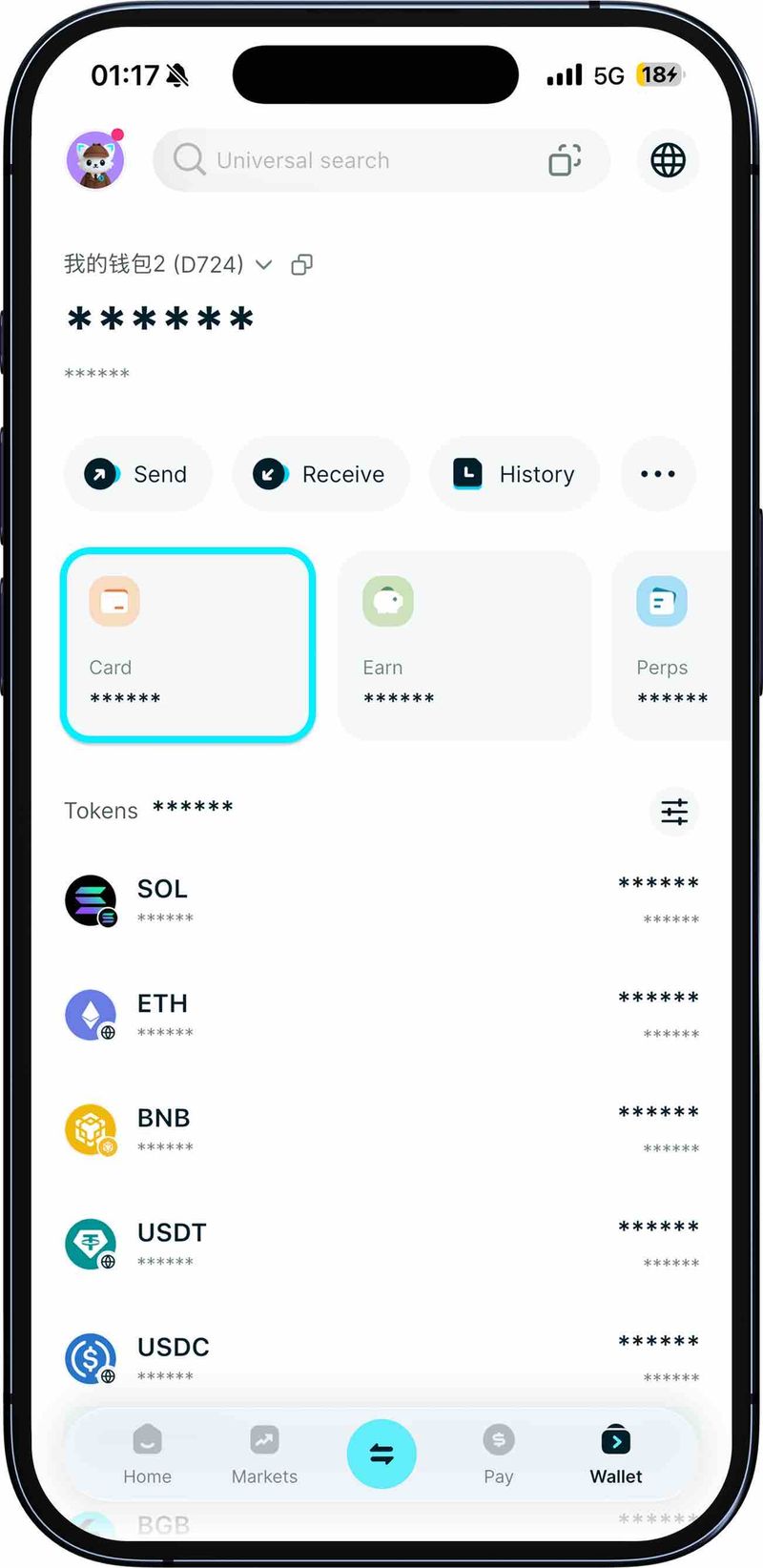
2. Add funds. Transfer some USDT or USDC to your Bitget Wallet.
3. Move funds to your card. Transfer your USDT or USDC from the Wallet to your Card account.
Quick tip: Add at least 10–20 USDT to your card balance. When you first link your card to an AI platform, they usually place a temporary hold of around $5 to verify it is valid.
4. Save your card details. Go to your card details page. Write down your card number, expiration date (MM/YY), and CVV. You will need these in the next step.
Step 2: Link your card to an AI platform (using OpenAI as an example)
OpenClaw runs locally on your computer, so it does not handle payments. Charges happen directly with the model provider you choose.
1. Go to the developer portal. Open your browser and go to platform.openai.com. Log in.
2. Find billing. In the left menu, click Settings, then Billing.
3. Add a payment method. Choose Individual or Company.
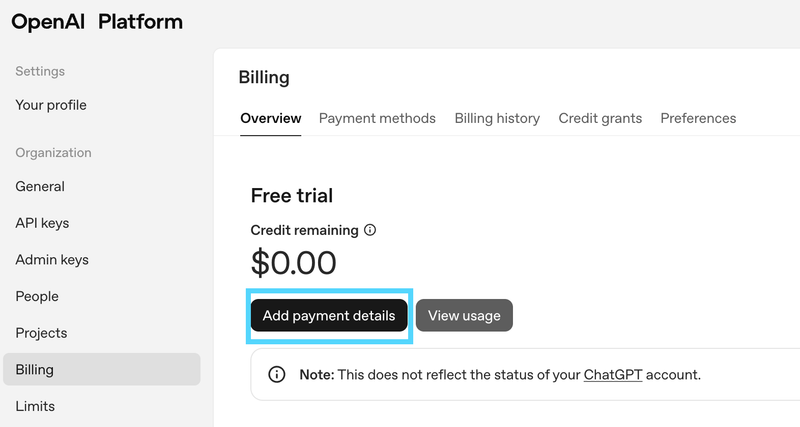
4. Enter your Bitget card info. Type in your card number, expiration date, and CVV exactly as you saved them.
5. Set your billing address. Use a billing address that matches the country of your current IP address. If your IP shows you are in the US, use a US address. If it shows the UK, use a UK address.
Quick tip: Keeping your IP and billing address consistent lowers the chance of your payment being flagged. If they do not match, they may flag the transaction and decline your card.
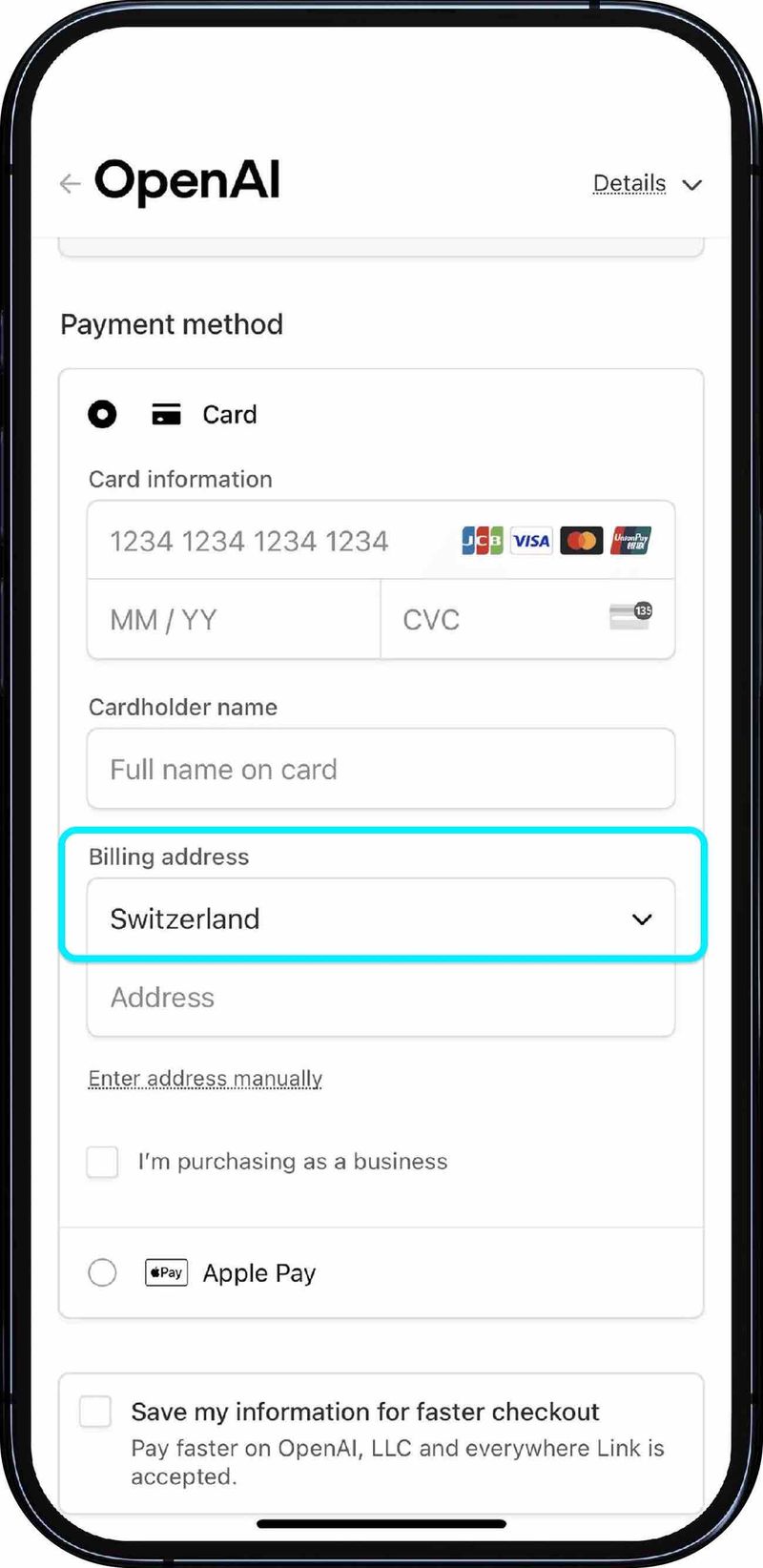
6. Add funds to your account. OpenAI now works on a prepaid system. Add $5 or $10 to start. When you confirm, the amount is charged directly to your Bitget Wallet Card.
7. Create an API key. In the OpenAI menu, click API keys in the left sidebar to create a new secret key.
8. Save your key safely. A long code starting with sk- will appear. Copy it right away and save it somewhere secure. You will only see it this one time.
Step 3: Get OpenClaw running
You have taken care of payments. Now it is time to get OpenClaw up and running. Do not worry if this looks technical. Just follow these steps and you will be set in 10 to 20 minutes.
1. Open your terminal and install OpenClaw.
Mac: Press Command + Space, type "Terminal," and hit Enter.
Windows: Press the Windows key, type "cmd," and hit Enter.
Copy and paste this line, then press Enter:
curl -fsSL https://openclaw.ai/install.sh | bash
OpenClaw will download and install automatically. If you prefer manual install, use: npm install -g openclaw@latest
2. Run through the quick setup. When installation finishes, the setup wizard will start. Choose Quick start – it is the easiest option.
3. Connect your AI model. Select the provider you set up earlier, like OpenAI, Claude, or Gemini. Paste in the API key you saved.
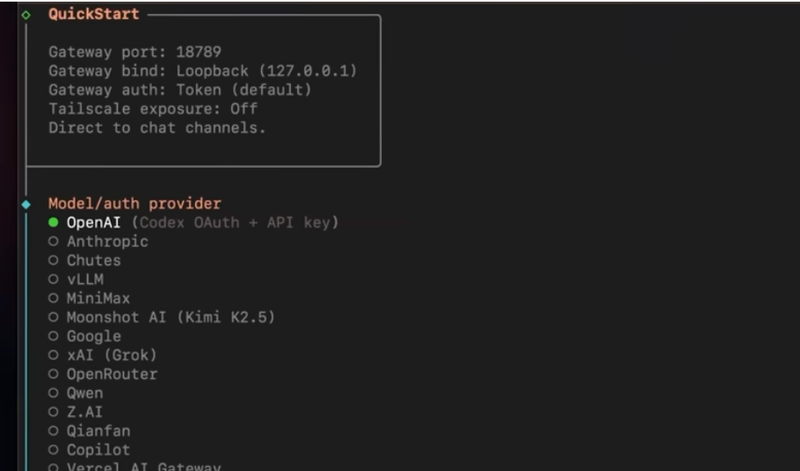
4. Pick how you want to chat. Choose Telegram, WhatsApp, or another option. For Telegram: Go to @BotFather, create a new bot, and paste the token it gives you back into OpenClaw.
Optional advanced setup:
Install Gateway for remote access
Install Daemon to run in the background
Install Skills for more capabilities
Configure Workspace to manage memory
5. Test it out. Open your dashboard or Telegram bot. Send this command: "Introduce yourself in one sentence."
You now have your own AI assistant. 🦞