


1
/
6
Checking card balance
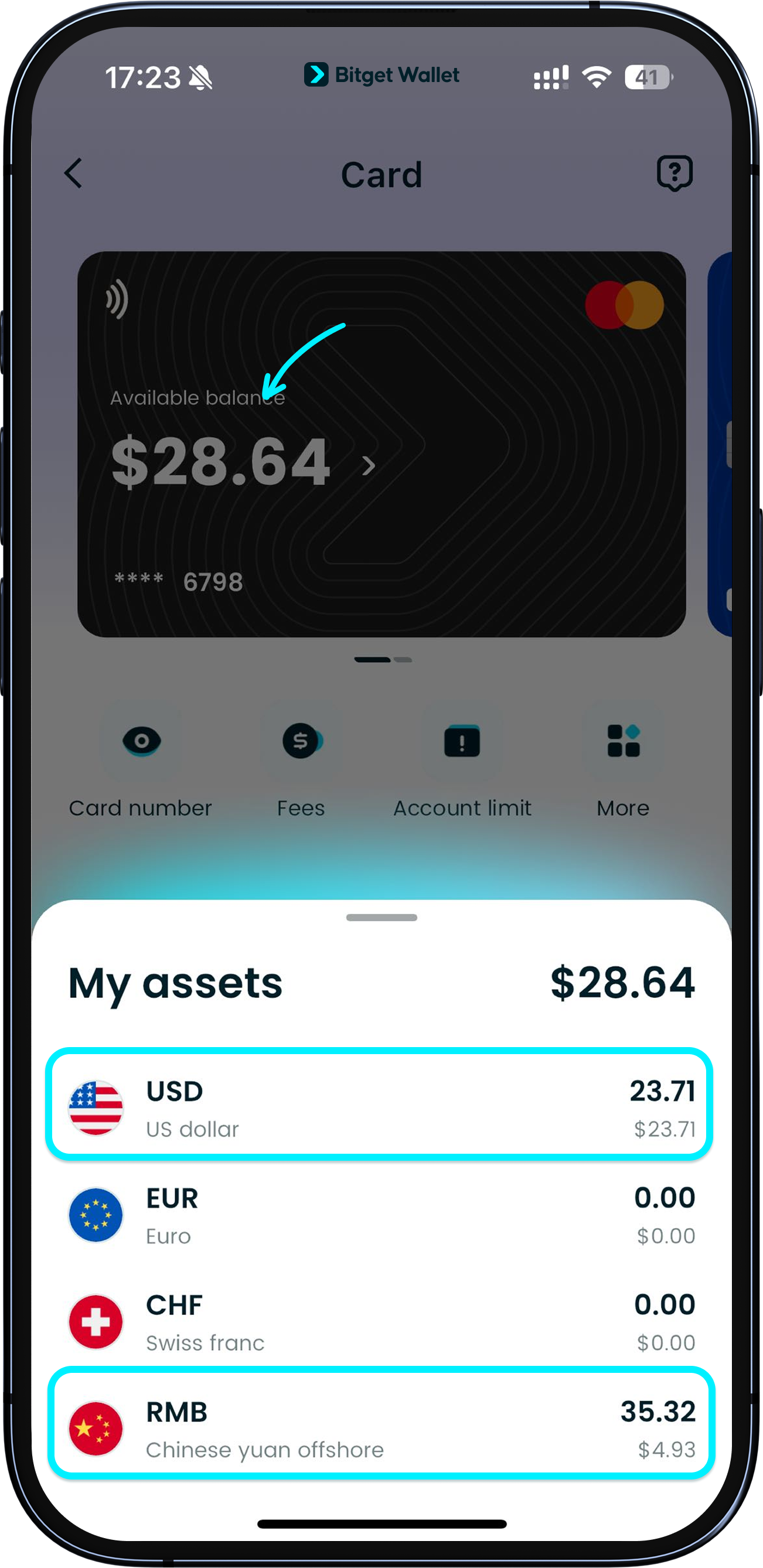
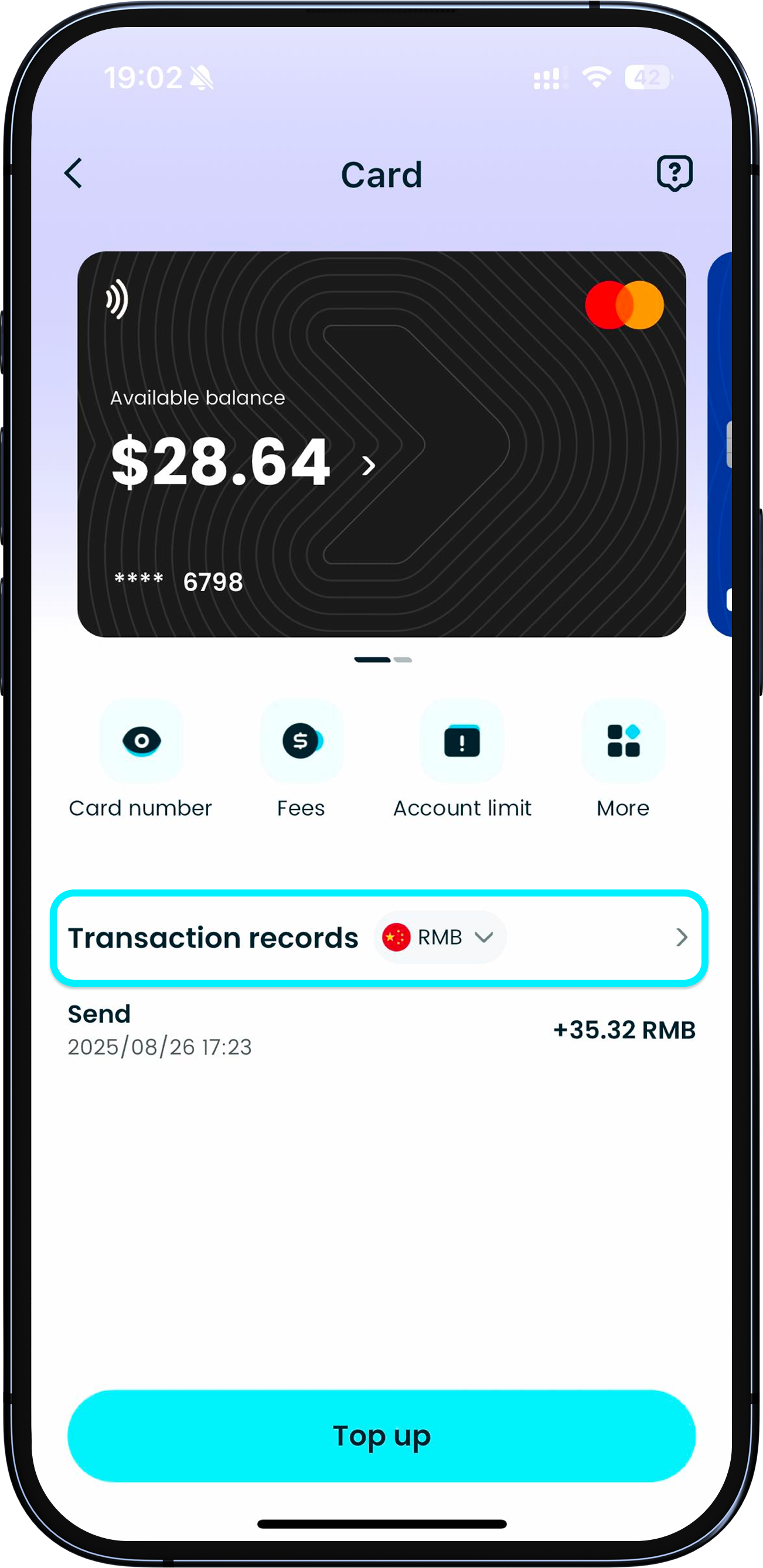
You can view your balance anytime in "Wallet" > "Card". If your card holds multiple currencies, the total balance will be shown. Tap to view the balance of each currency.
You can view your balance anytime in "Wallet" > "Card". If your card holds multiple currencies, the total balance will be shown. Tap to view the balance of each currency.

1
/
6
Different currencies cannot be combined
<b>When paying with the card, you cannot use balances from different currencies in a single transaction.</b>
For example, if you need to pay 500 RMB but your RMB and USD balances are <b>both below the value of 500 RMB</b>, the order will show "Insufficient balance" even if the combined balance exceeds 500 RMB. Please exchange currencies first.
1
/
6
How to exchange currencies?
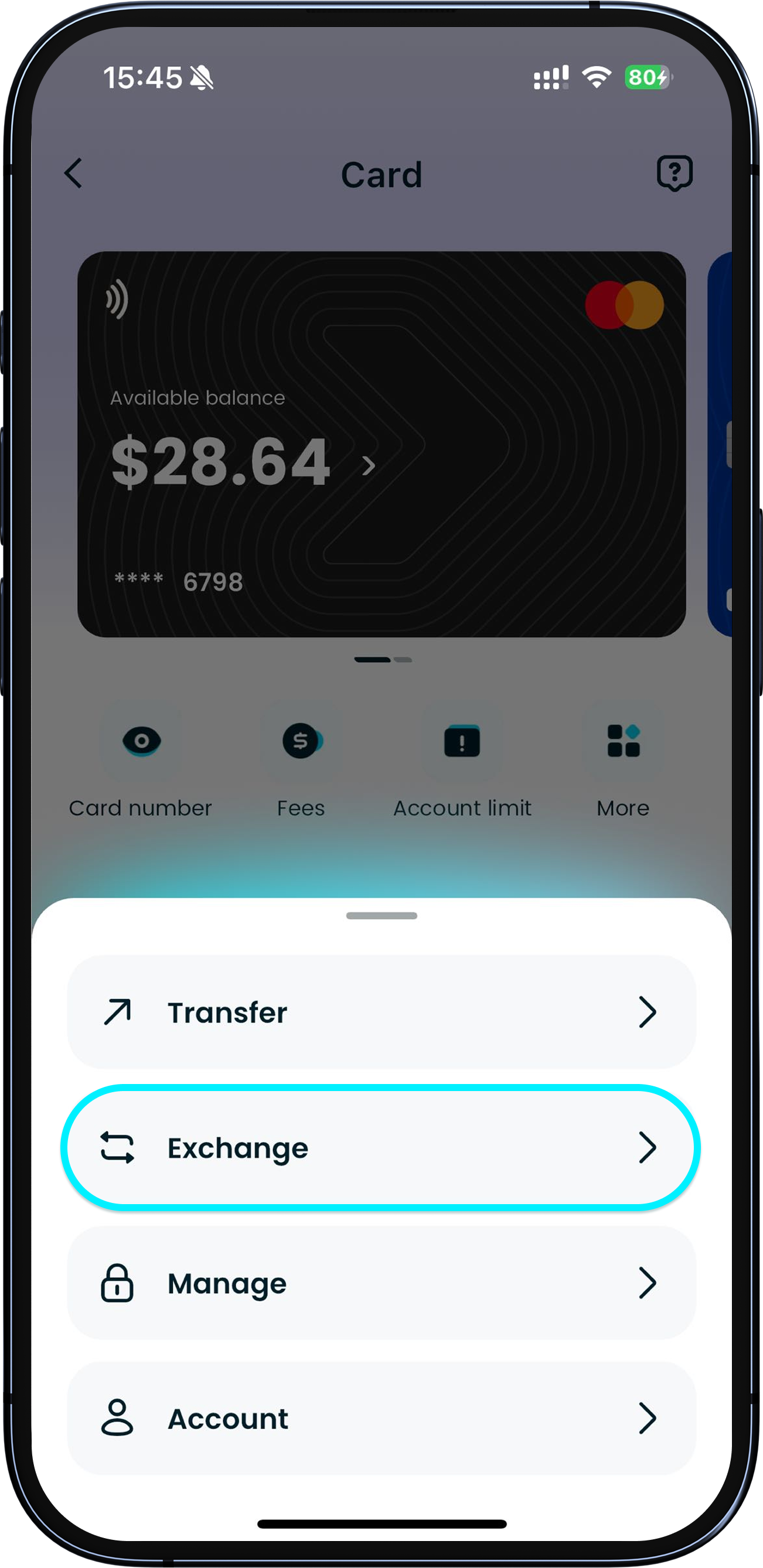
In this case, go to "Card" > "More" > "Forex" to open the Fiat24 exchange page.
1
/
6
Switching currencies
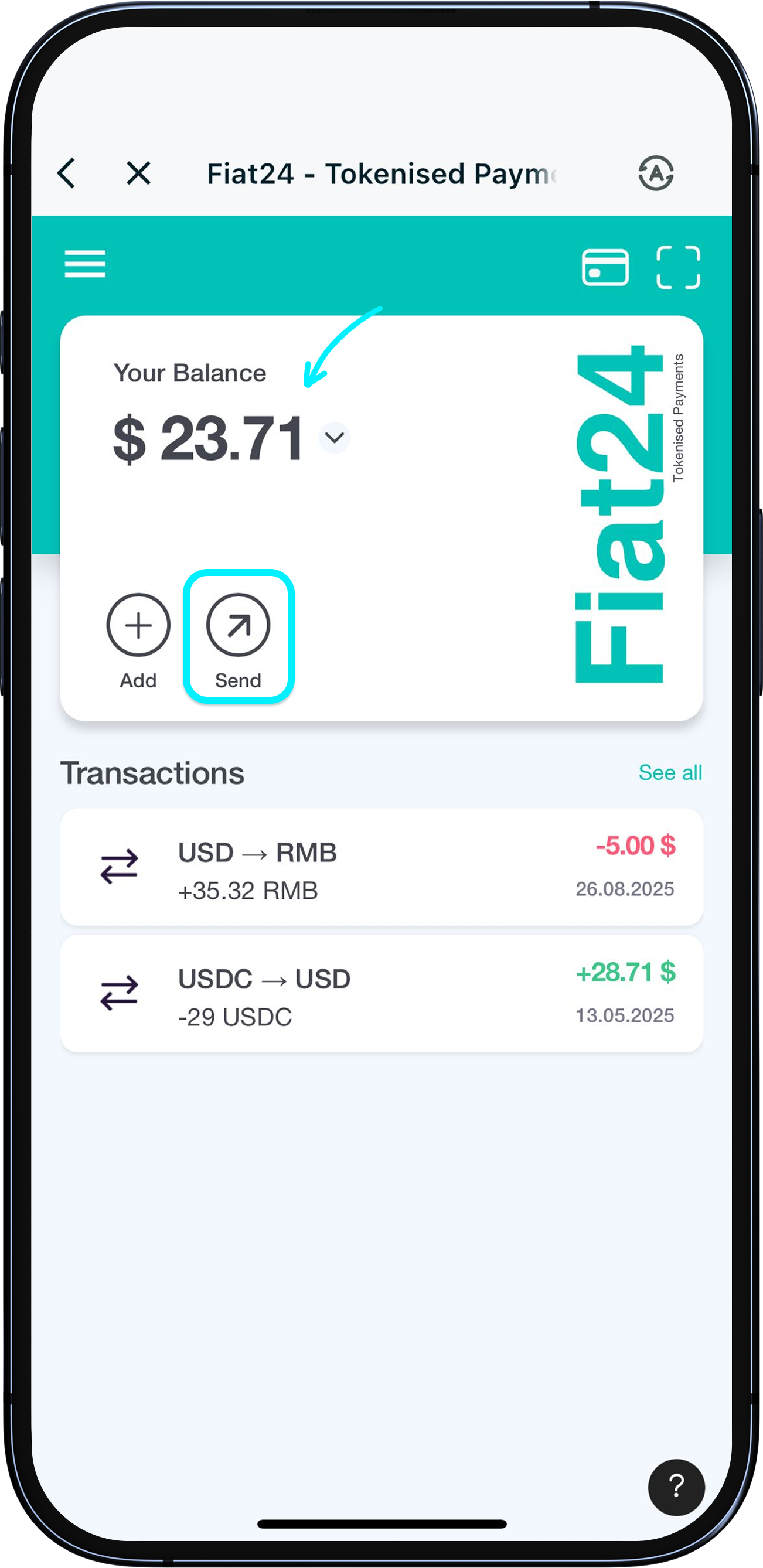
First switch the currency in "Your Balance" to the <b>one you want to exchange from</b>, then tap "Send".
1
/
6
Choosing the currency you want to receive
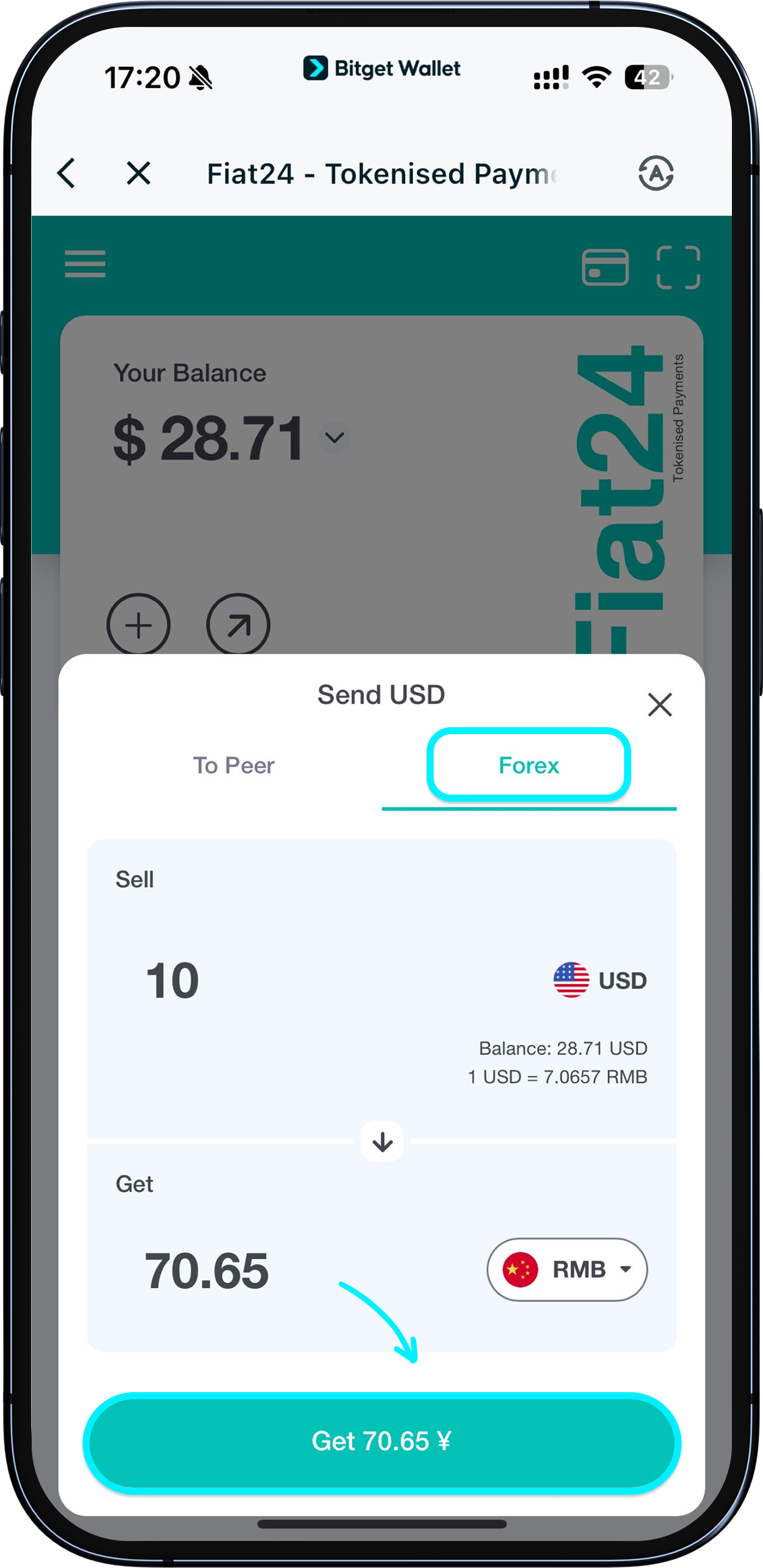
In the pop-up, select "Forex", then choose the currency you want to receive. You will see the amount you'll receive on the page (calculated at the real-time rate; some FX spread/slippage may apply).
Tap "Get". You may be prompted to sign an authorization. A small gas fee is required for the exchange.
1
/
6
Viewing the exchange result
After a successful exchange, the balances will be updated. You can check the transaction details under "Transaction records".