


1
/
6
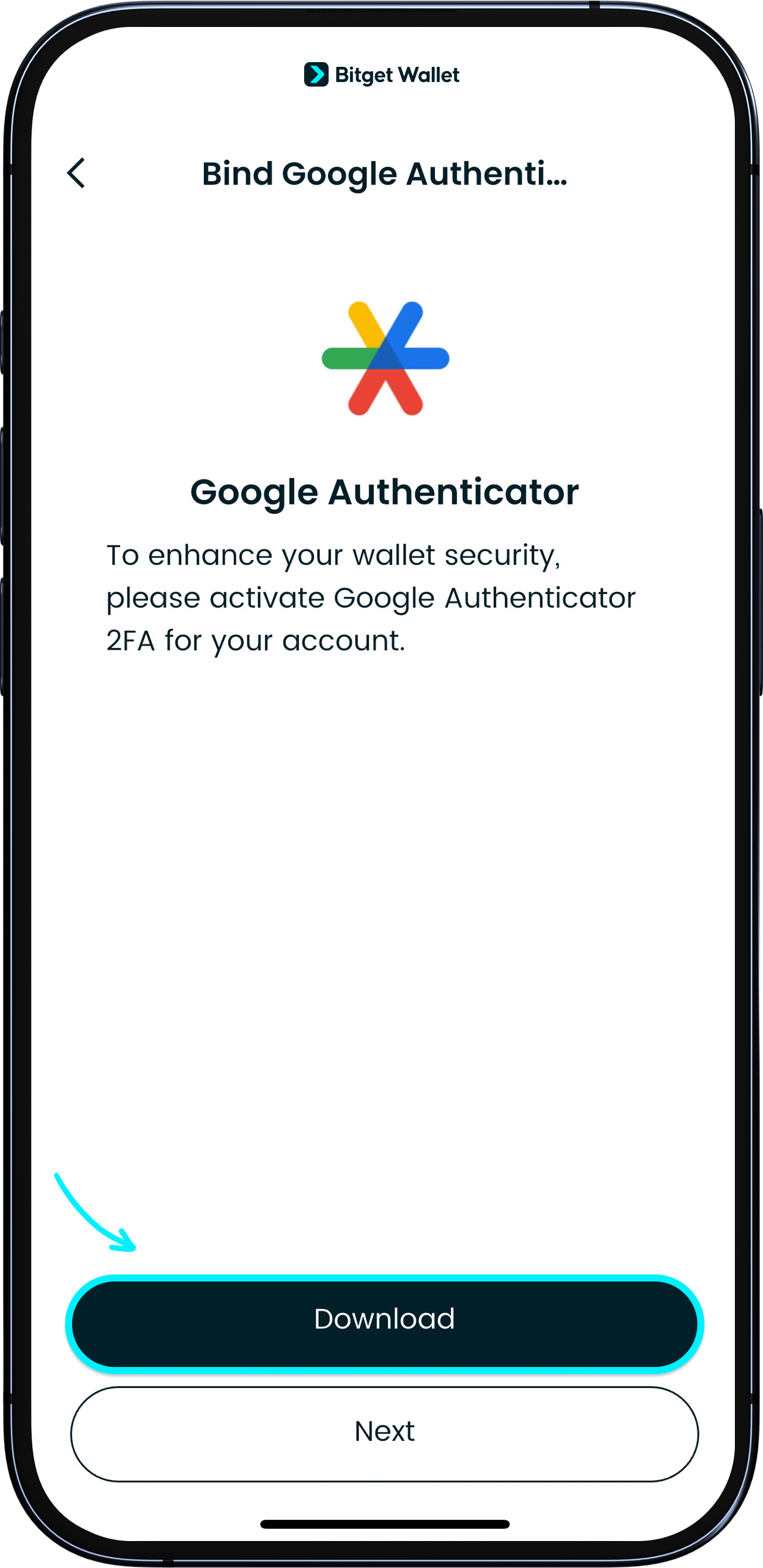
Download Google Authenticator app
<b>To protect your wallet assets, we recommend linking Google Authenticator</b> for an extra layer of security.
First, download the Google Authenticator app on your device.
<b>To protect your wallet assets, we recommend linking Google Authenticator</b> for an extra layer of security.
First, download the Google Authenticator app on your device.
1
/
6
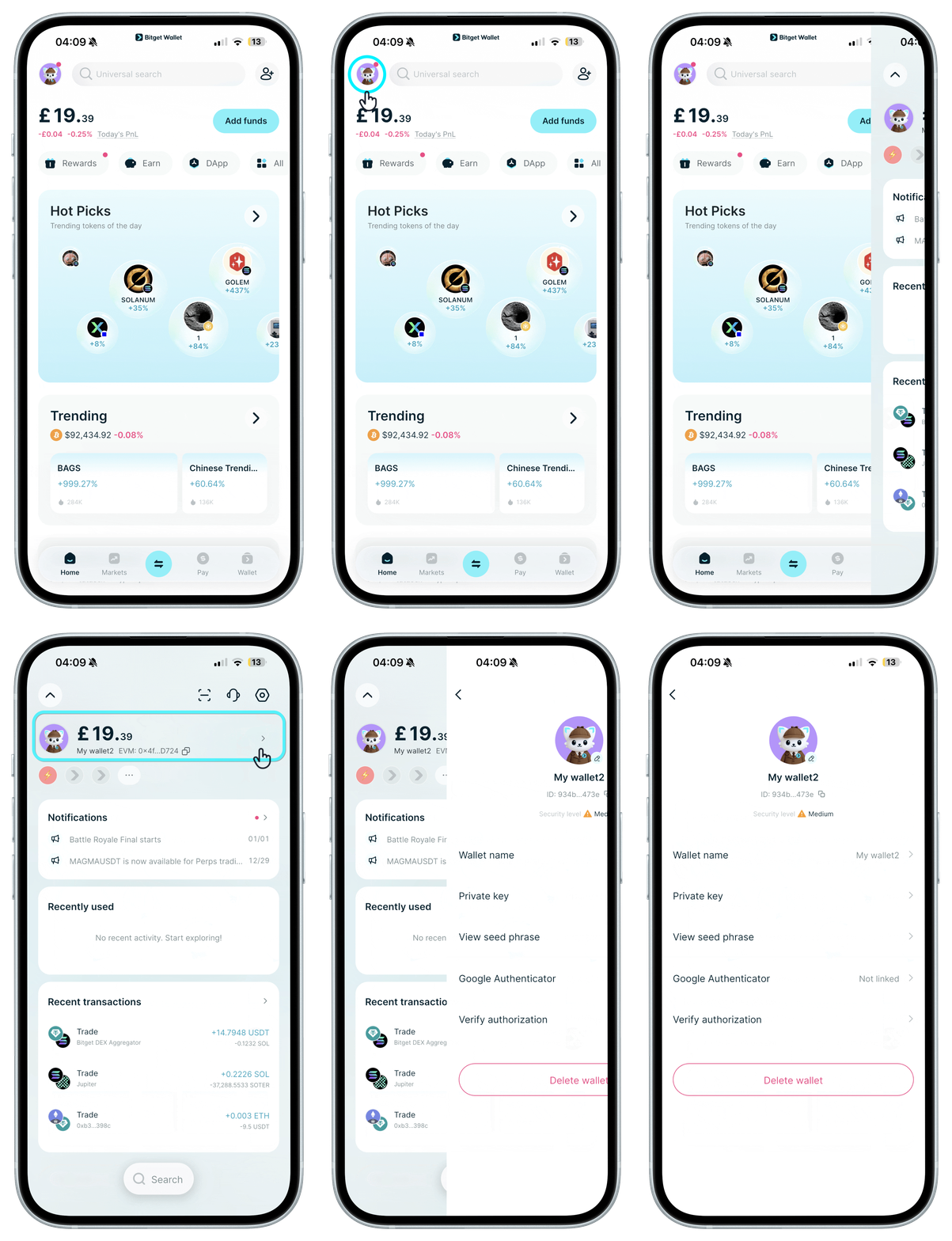
Check your key in Bitget Wallet app
In the Bitget Wallet app, go to "Settings" > "My Wallet" > "Two-factor authentication", tap "Google Authenticator", then view and copy the key.
<b>Save this key – it's the only way to recover access if you lose your phone.</b> If you lose both your phone and this key, contact Customer Support. Do not share it with anyone.
1
/
6
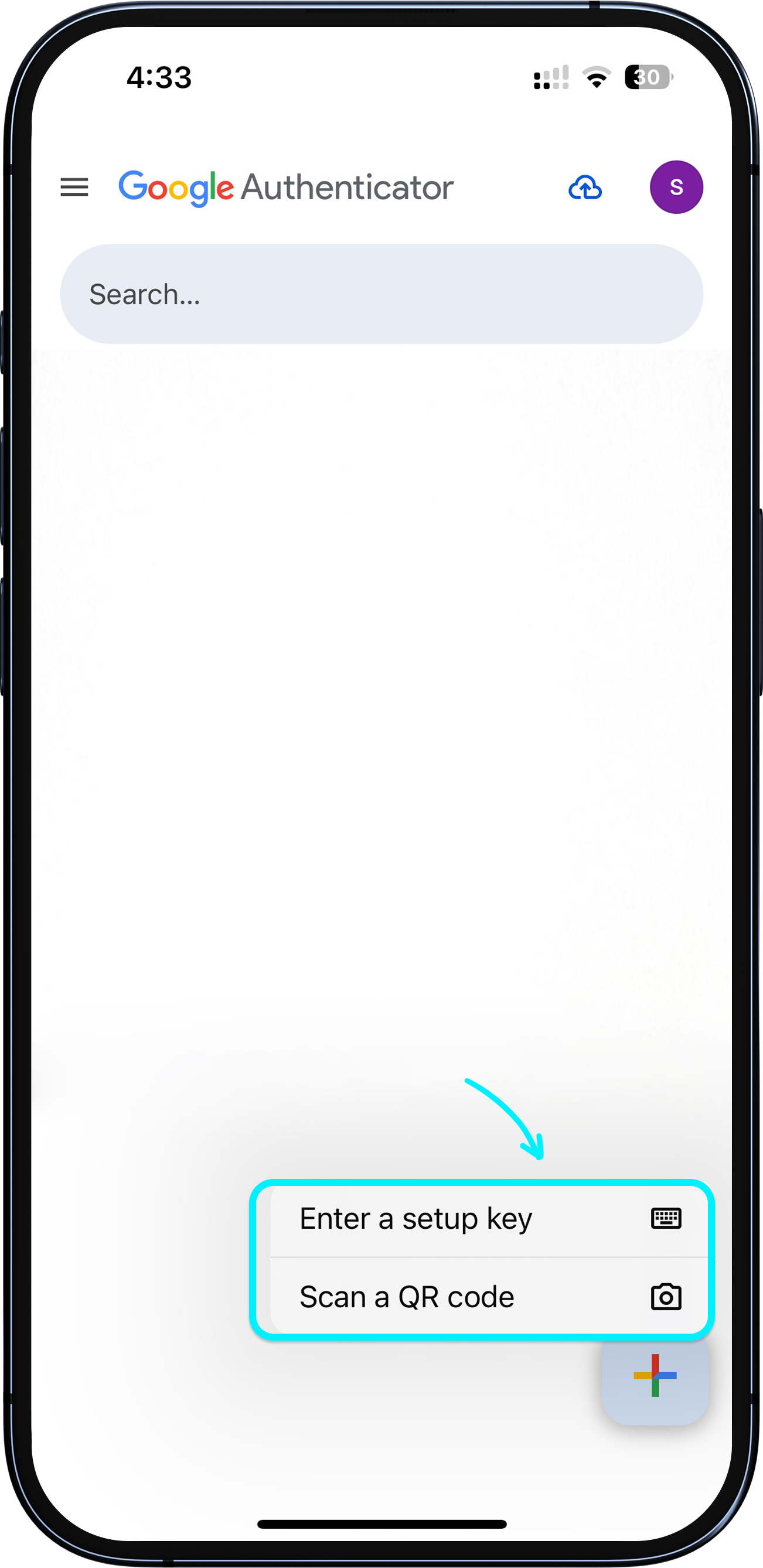
Paste copied key into Google Authenticator app
In the Google Authenticator app, tap "+" to add an account, and choose to import using the copied key.
If the Google Authenticator app and the Bitget Wallet app are on different devices, you can choose "Scan QR code" and scan the QR code shown in the Bitget Wallet app in the previous step.
1
/
6
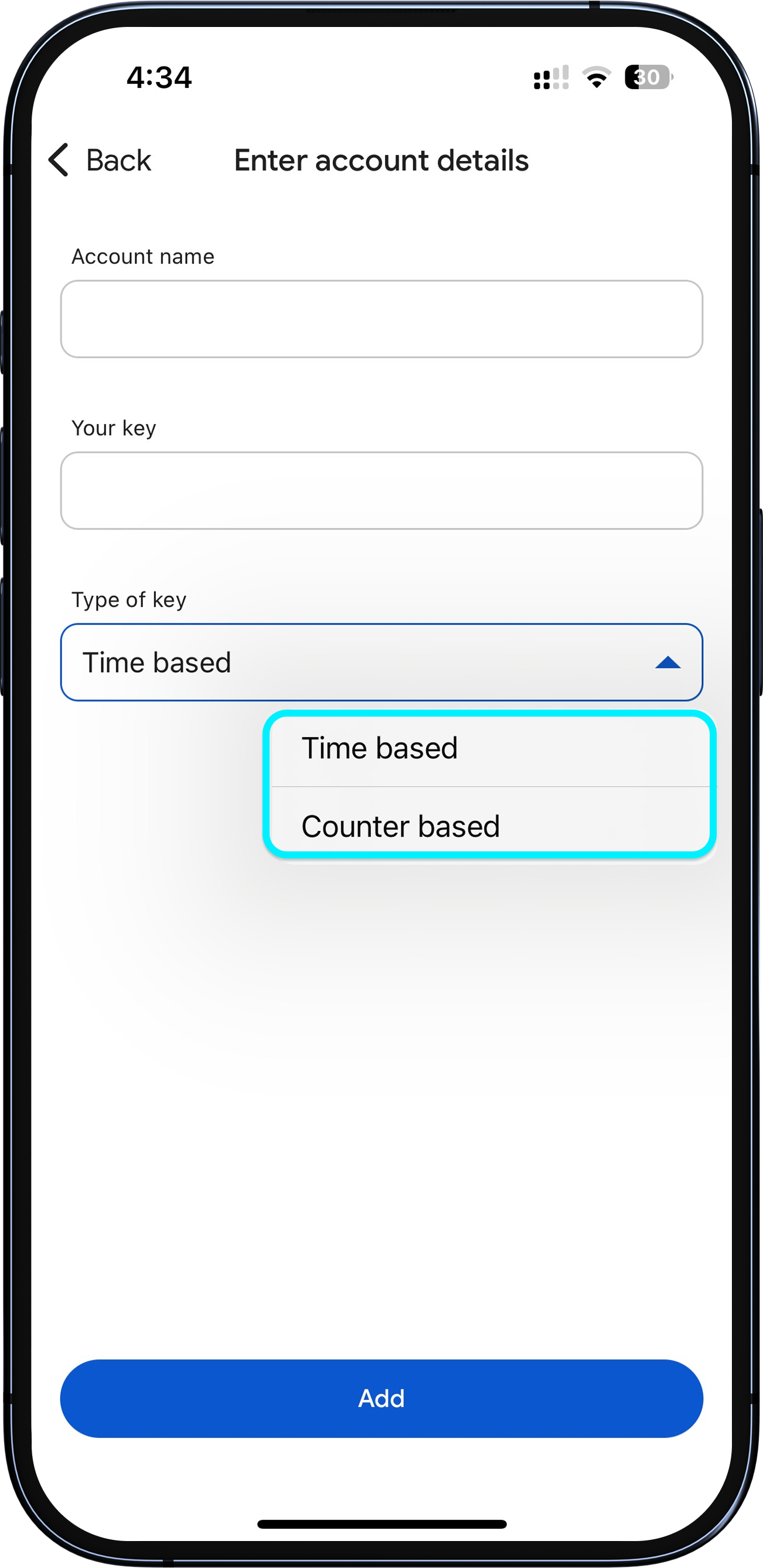
Choose the key type and get your code
When setting up, there are two key types to choose from:
Time-based: the codes refresh continuously based on time.
Counter-based: a code becomes invalid after one use; a new one must be generated for the next use.
You can view your Google Authenticator code on the page; tap to copy it.
1
/
6
Bind in Bitget Wallet app
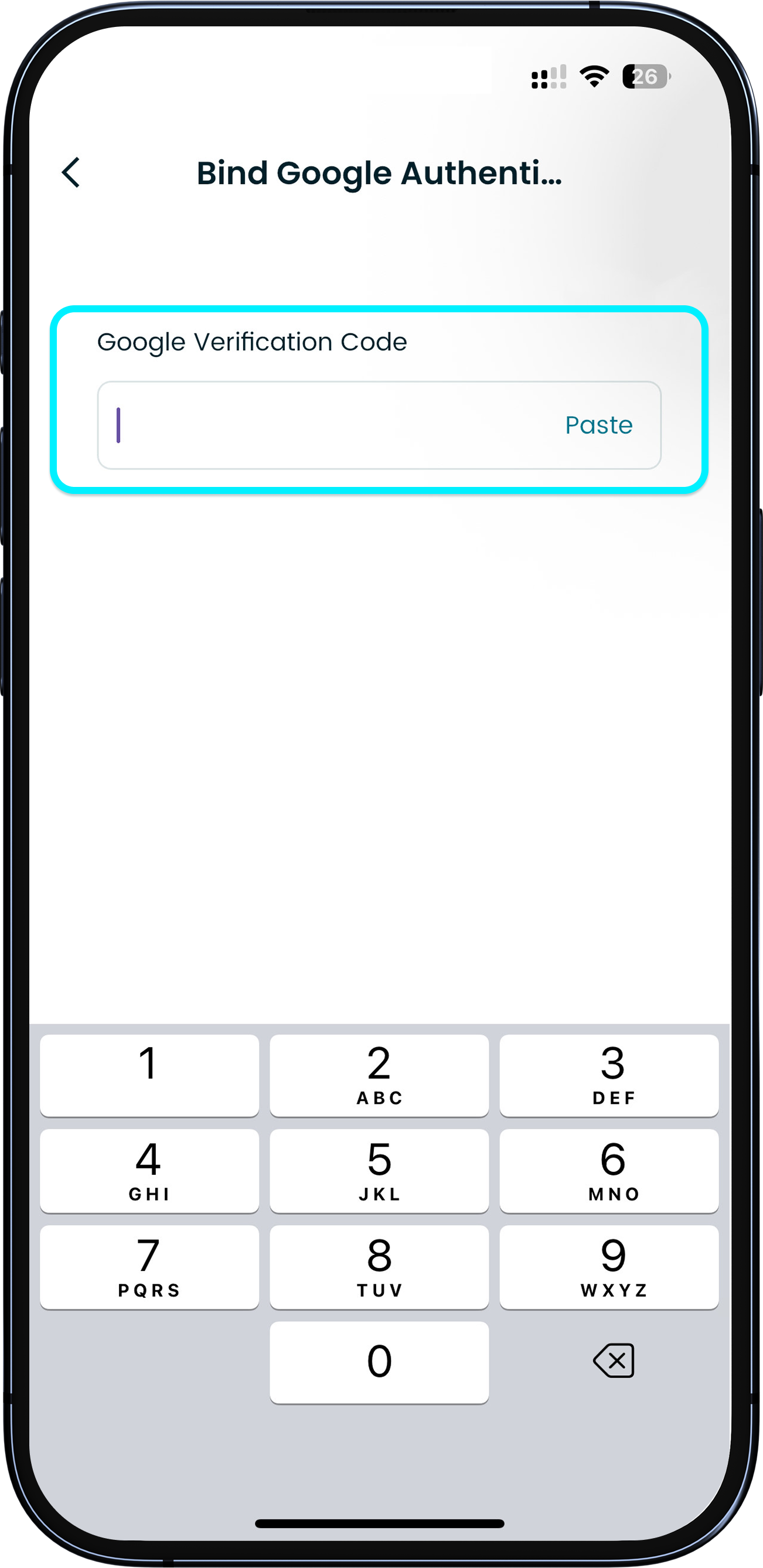
After importing the key into Google Authenticator, return to the Bitget Wallet app, paste the code you just obtained, and tap "Bind".
1
/
6
Binding successful
After successful linking, the page will show "Bound".
When logging in or completing security checks in the app, you may be asked to enter your Google Authenticator code. Never share it with anyone.