



1
/
6
Creating your first wallet
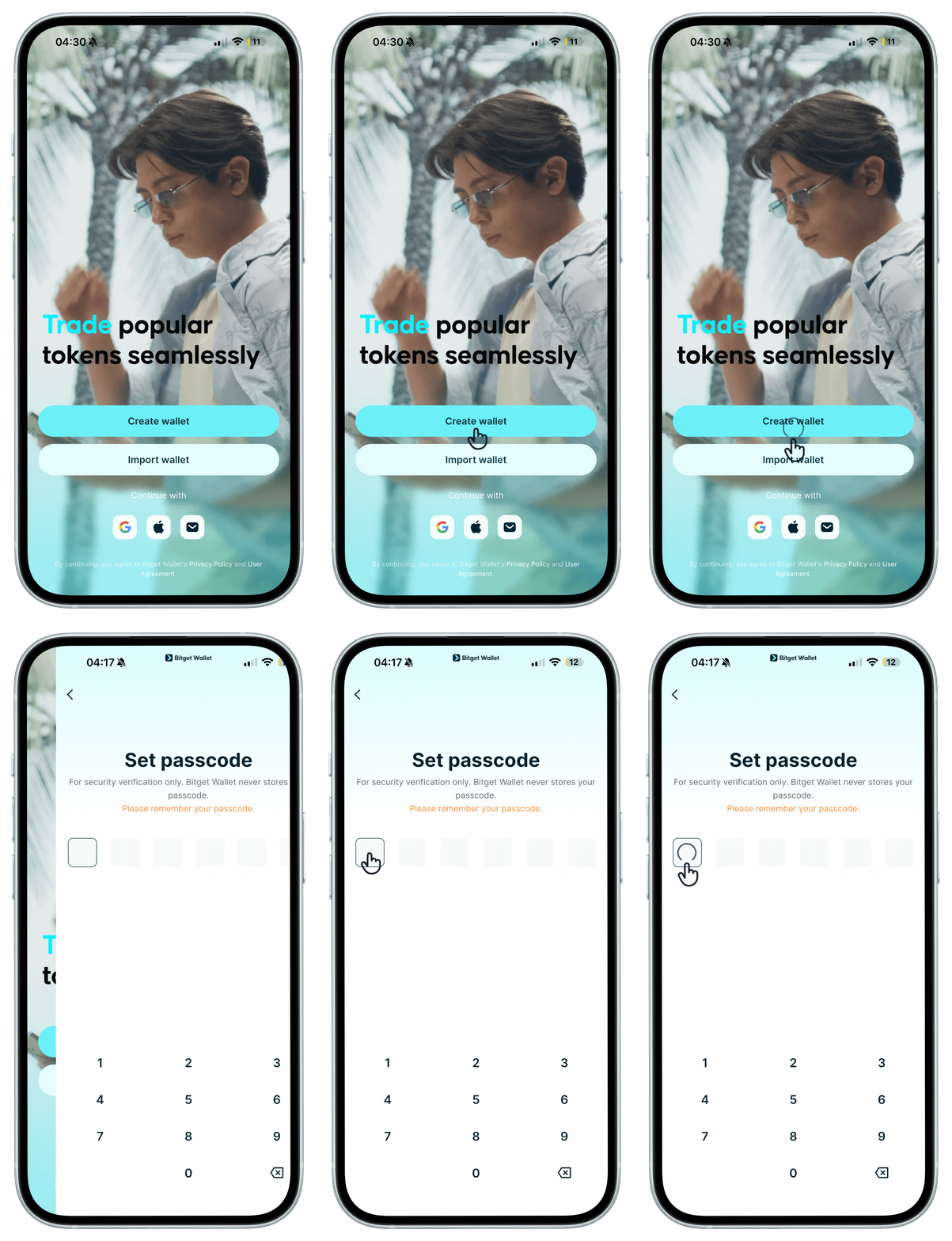
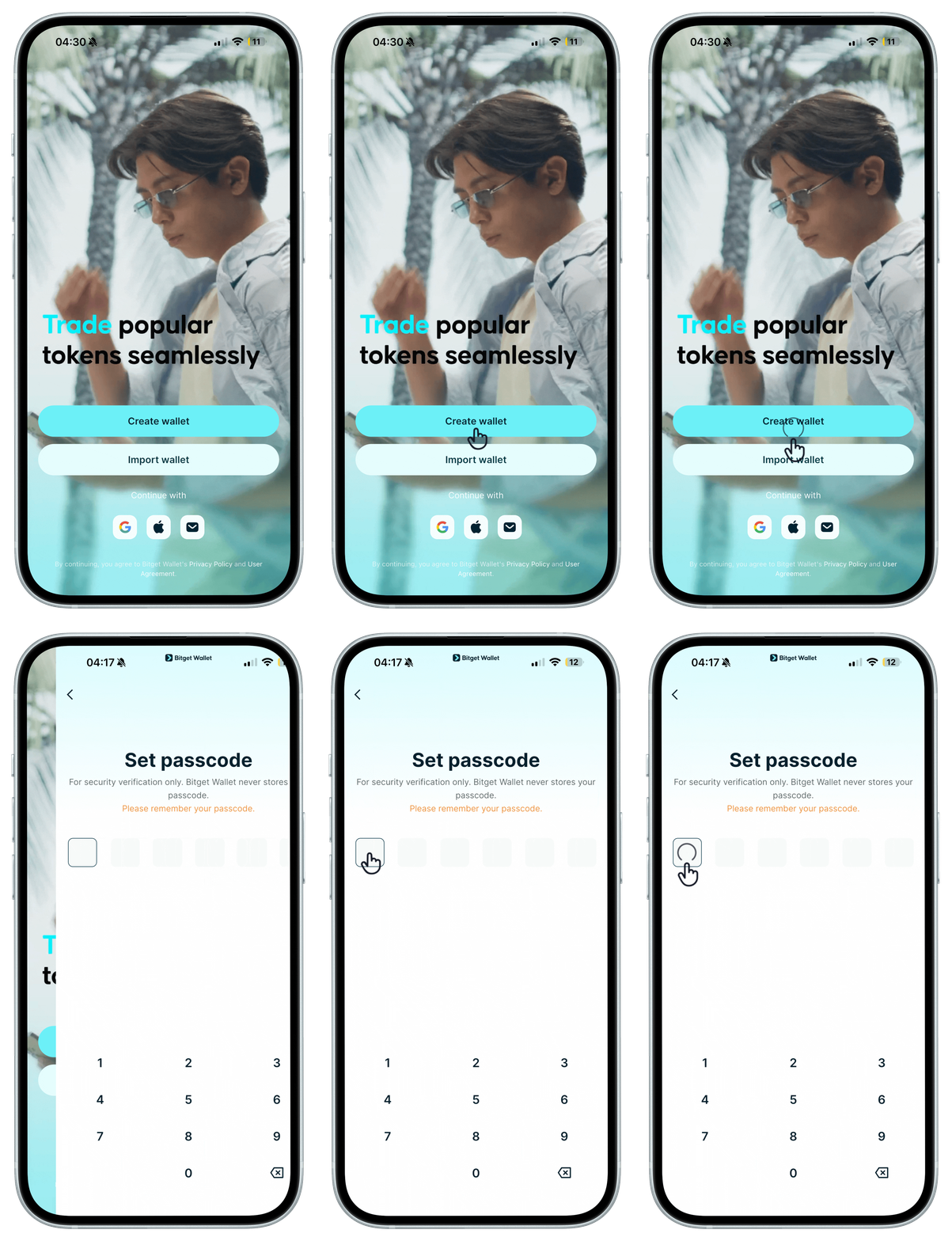
When you first open the Bitget Wallet app, you can create a wallet and set a passcode. <b>This passcode is used to verify your identity or approve (sign) transactions. Please remember it – if you forget it, it cannot be recovered.</b>
When you first open the Bitget Wallet app, you can create a wallet and set a passcode. <b>This passcode is used to verify your identity or approve (sign) transactions. Please remember it – if you forget it, it cannot be recovered.</b>
1
/
6
Backing up your seed phrase
After your first <b>seed phrase wallet</b> is created, follow the prompts to back up your seed phrase immediately to keep your wallet secure. If you lose the seed phrase, it cannot be recovered.
1
/
6
Creating more wallets
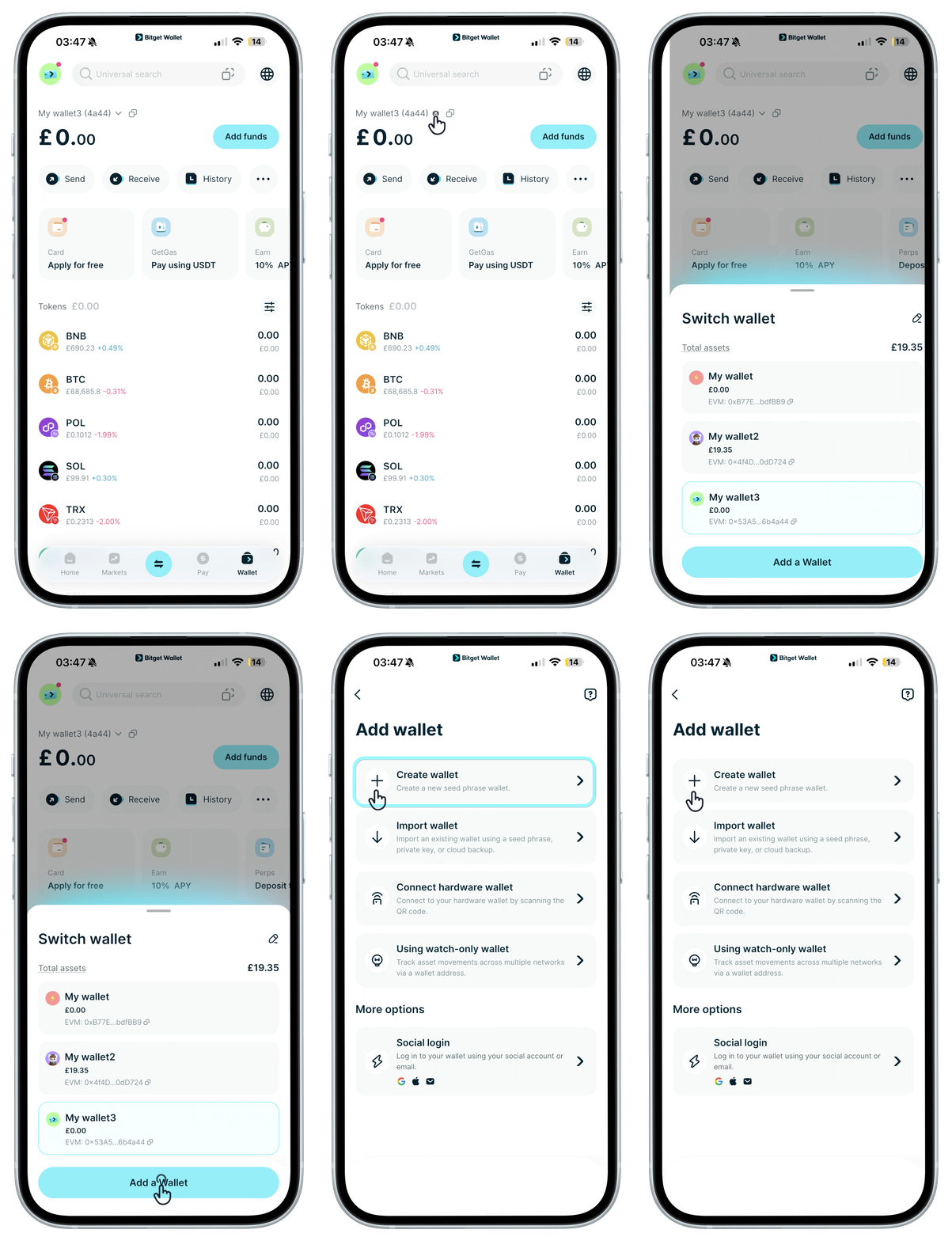
You can create more seed phrase wallets and get a unique seed phrase for each one. <b>Be sure to back up every wallet's seed phrase promptly.</b>
1
/
6
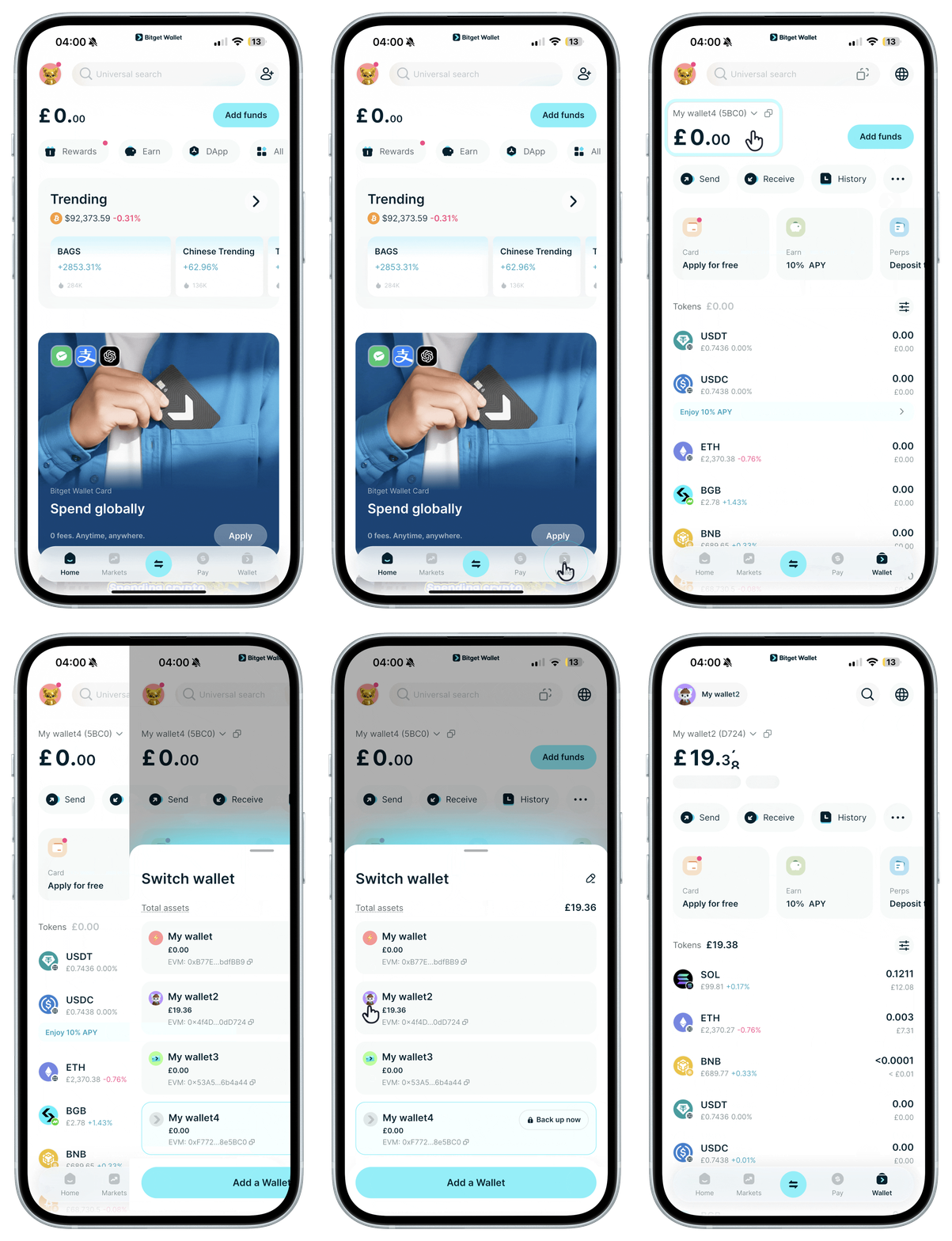
Switching wallets
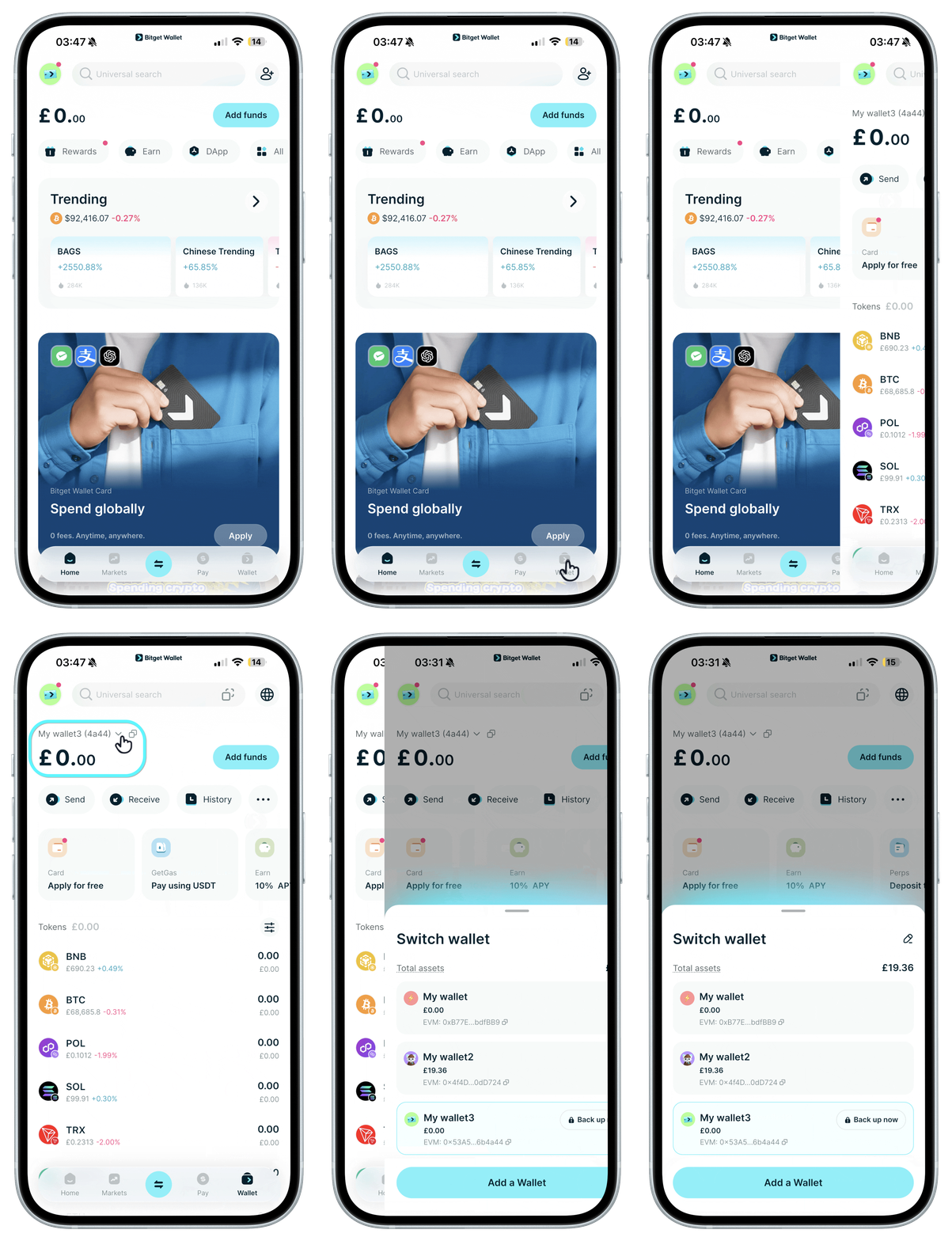
Tap to switch between your wallets.
1
/
6
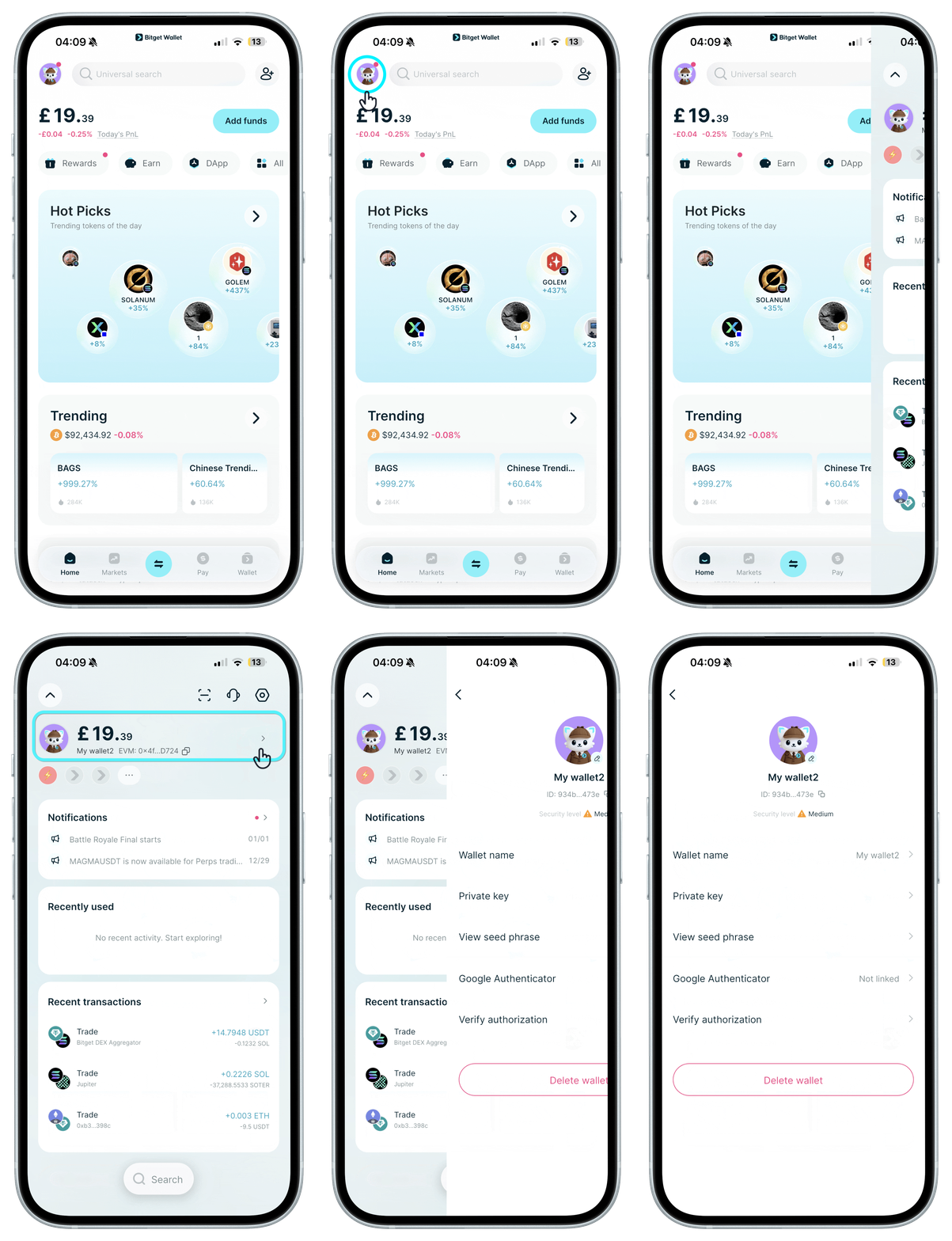
Viewing/editing wallet settings
On "Home", tap your avatar, then on the next screen tap your avatar again to rename your wallet, change profile picture, view private keys, and more.
1
/
6
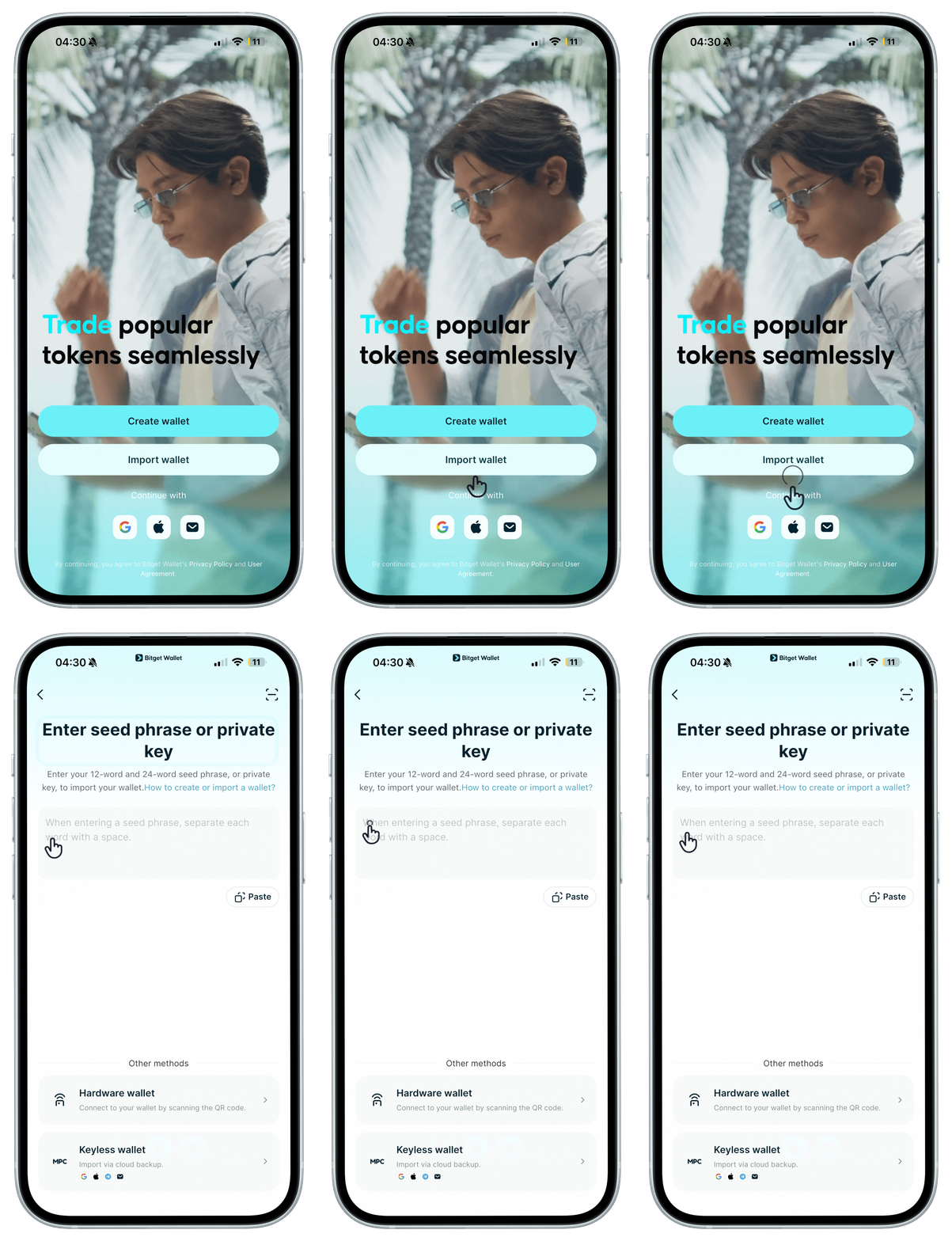
Forgot your passcode?
Your wallet passcode cannot be recovered. If you forget it, you'll need to reinstall the Bitget Wallet app, set a new one, then restore your wallet by importing your seed phrase or private keys.