


1
/
1
Can’t find your Google Authenticator code?
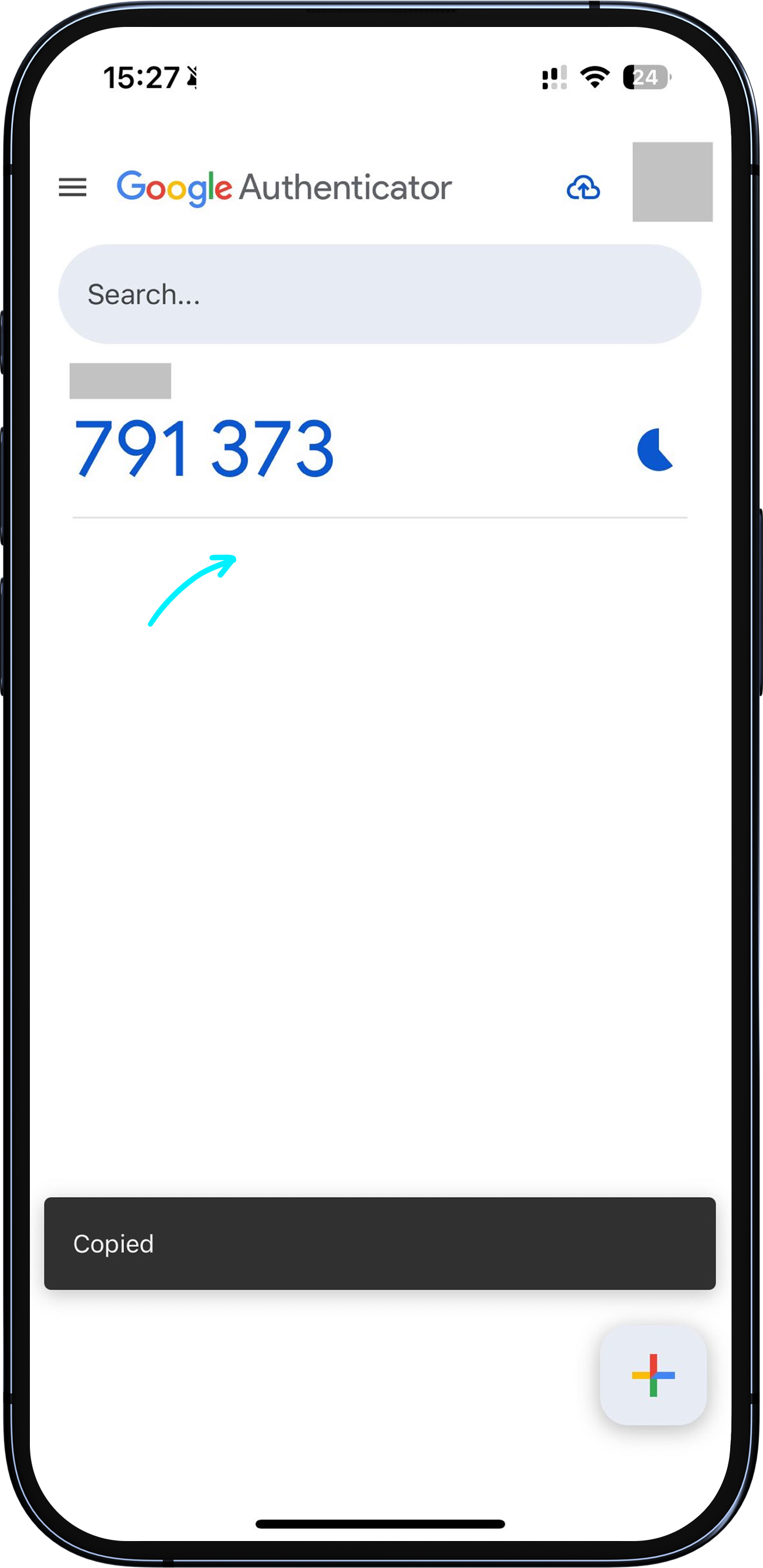
After importing your Bitget Wallet setup key into Google Authenticator and selecting the key type, <b>the 6-digit code displayed is your Google Authenticator code</b>.
Tap to copy it, then paste it into the verification field in the Bitget Wallet app.
If you are using a time-based code, please enter it within the valid time window. If you see "Invalid code", wait for the next code to refresh and try again.
After importing your Bitget Wallet setup key into Google Authenticator and selecting the key type, <b>the 6-digit code displayed is your Google Authenticator code</b>.
Tap to copy it, then paste it into the verification field in the Bitget Wallet app.
If you are using a time-based code, please enter it within the valid time window. If you see "Invalid code", wait for the next code to refresh and try again.