



1
/
4
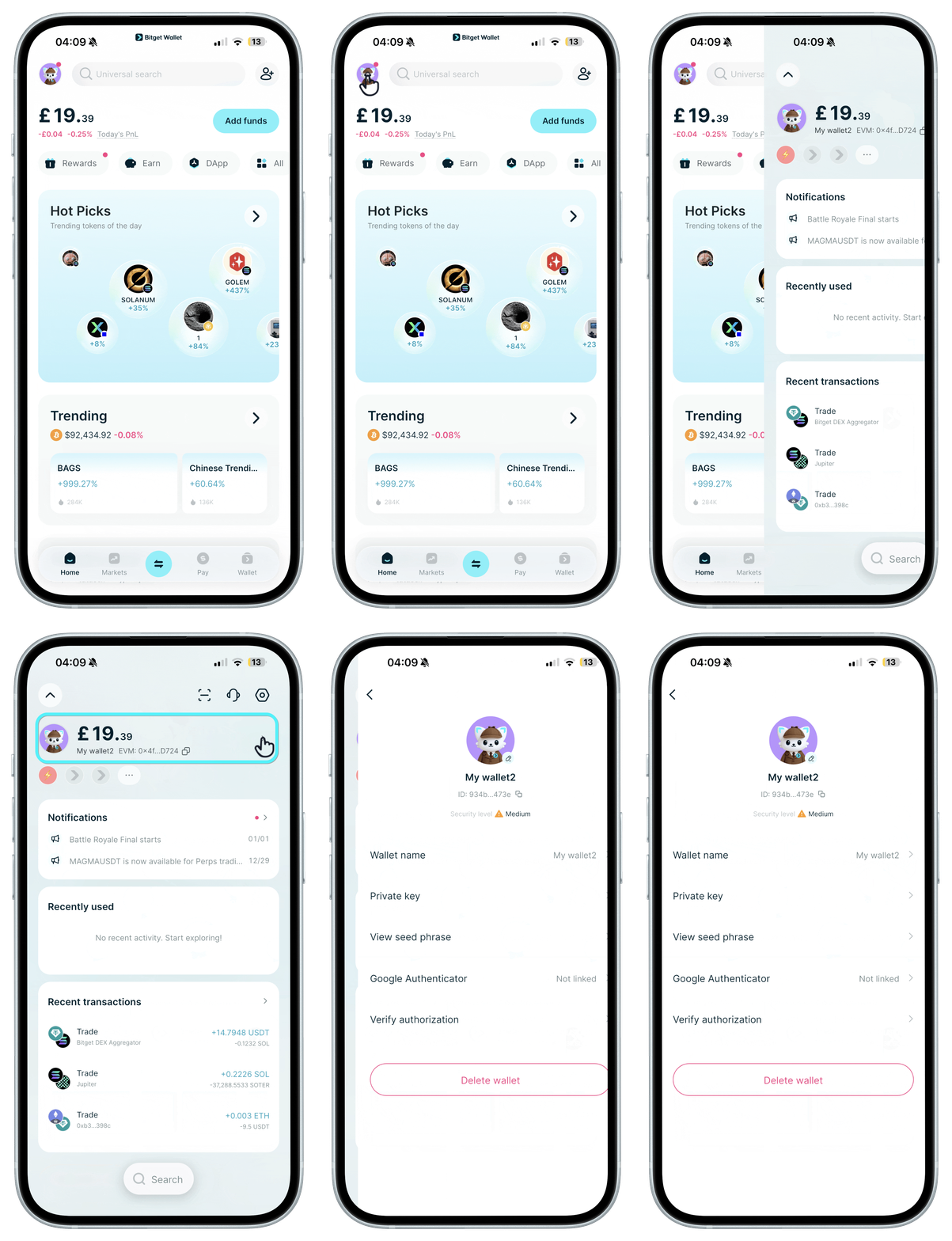
Back up all seed phrases from old device
First, make sure to back up the seed phrases from all your wallets in the old device. Write them down on a piece of paper and keep it safe. On "Home", tap your avatar, then on the next screen tap your avatar again to access each wallet's seed phrase.
For social login wallets, you do not have to back up any seed phrases.
Important: do not uninstall the app from your old device until you successfully import all wallets in the new device.
First, make sure to back up the seed phrases from all your wallets in the old device. Write them down on a piece of paper and keep it safe. On "Home", tap your avatar, then on the next screen tap your avatar again to access each wallet's seed phrase.
For social login wallets, you do not have to back up any seed phrases.
Important: do not uninstall the app from your old device until you successfully import all wallets in the new device.
1
/
4
If your new device has migrated and auto-installed the Bitget Wallet app
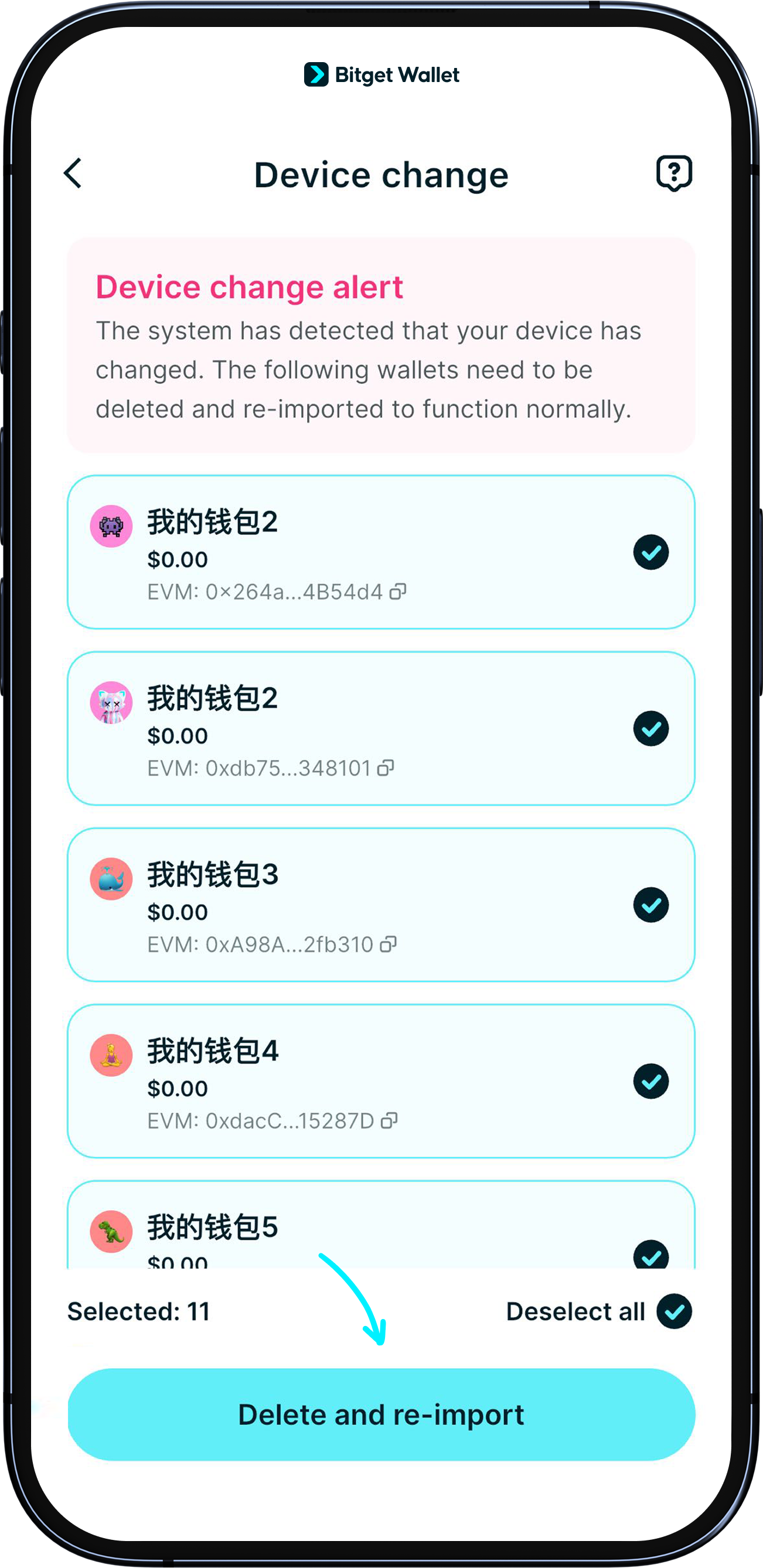
Due to upgrades in security encryption, you may need to delete your wallets and re-import them. Please follow the in-app prompts on your new device.
<b>1. Delete your social login wallet and re-login using the same account.
2. Delete seed phrase wallets and re-import them individually using their seed phrases.</b>
1
/
4
If your new device does not have the Bitget Wallet app
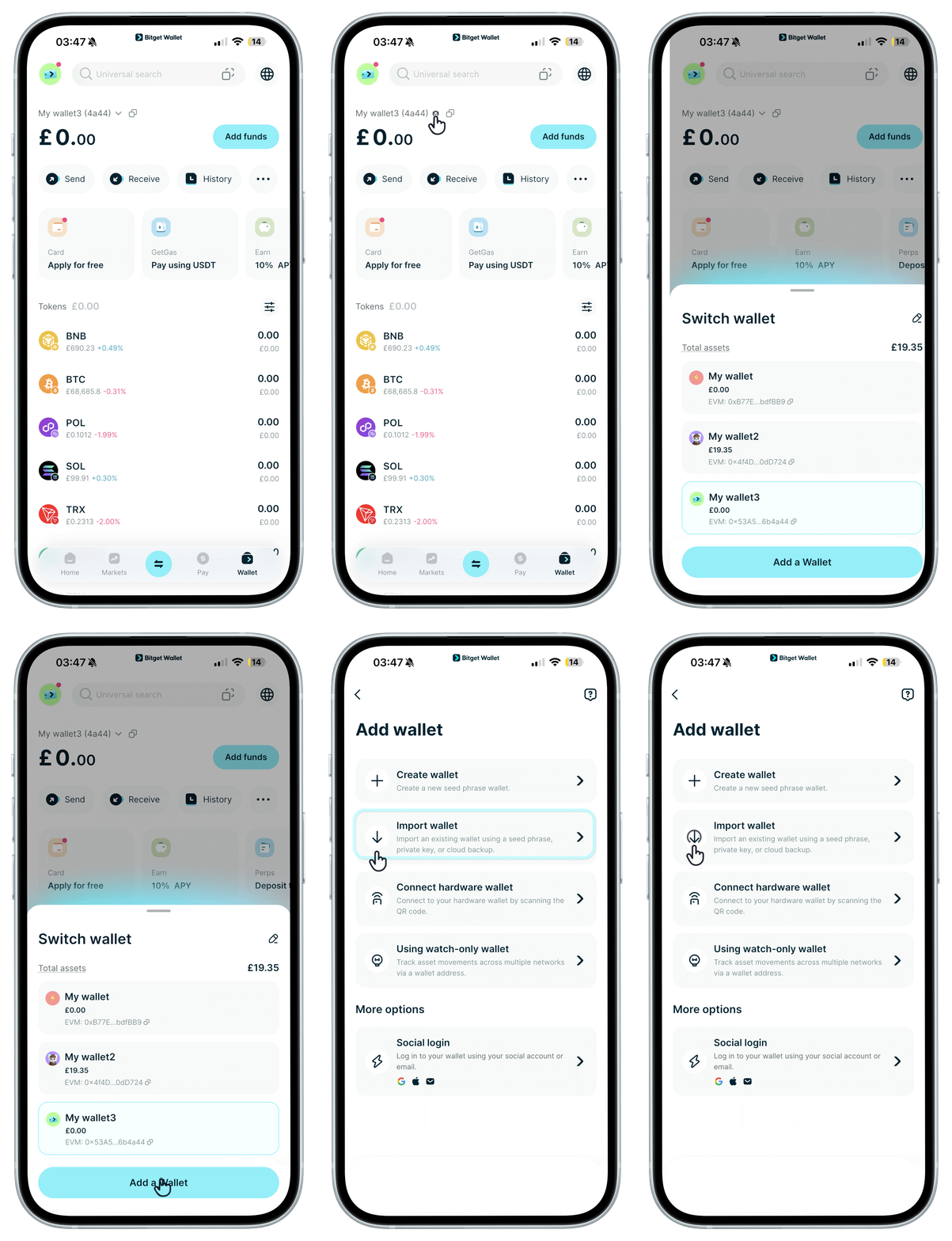
Download the latest app version and import each wallet using your social account and seed phrases.
1
/
4
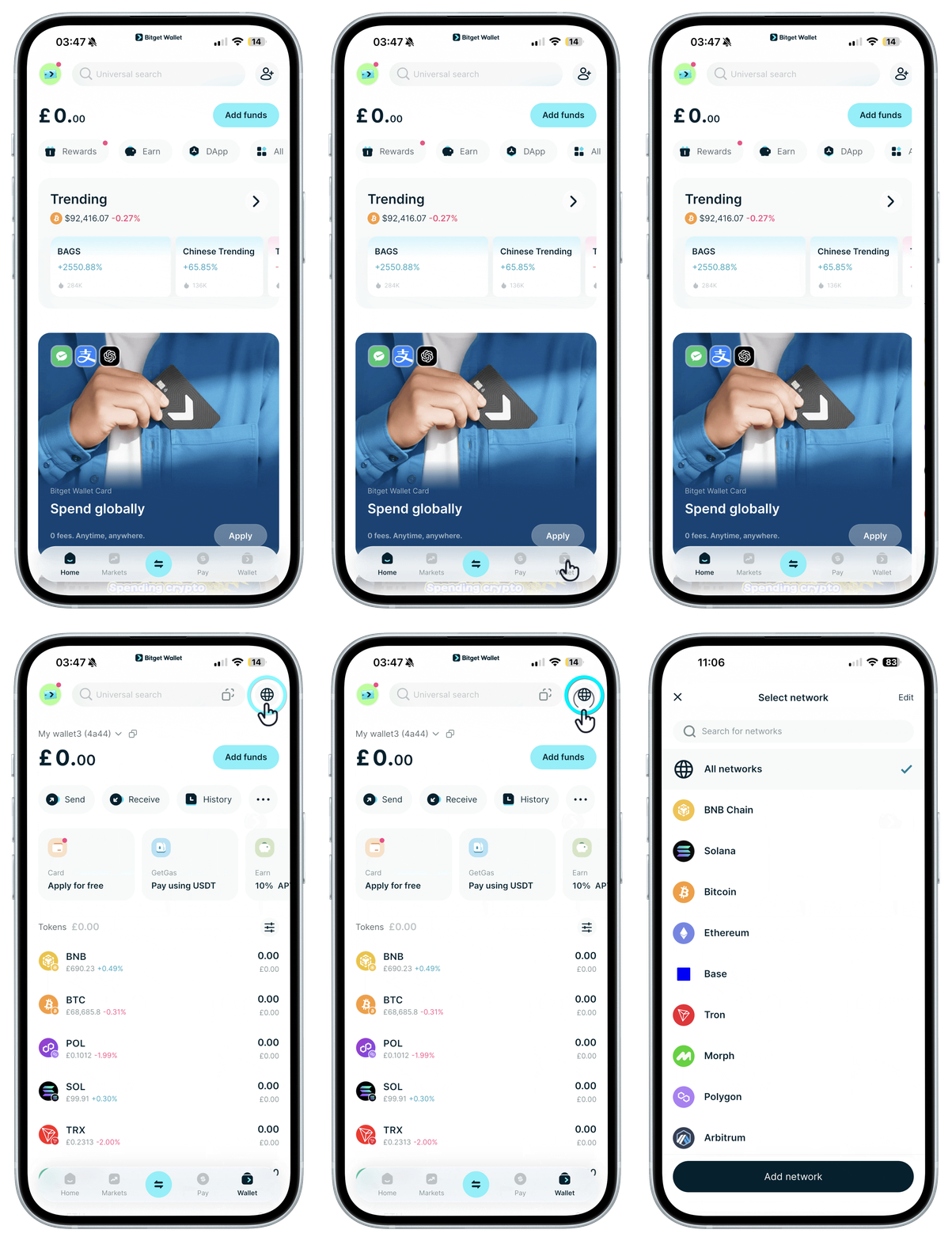
Seeing incorrect assets after importing your wallet?
For common mainnets like EVM chains, SVM chains, TON, TRON, and Aptos, your assets on these networks will display automatically after a successful import. Try refreshing the page.
If your assets aren't on these networks and don't appear after import, remove the existing network or disable the relevant tokens first, then re-add them.
