



1
/
4
How to add 2FA to your wallet
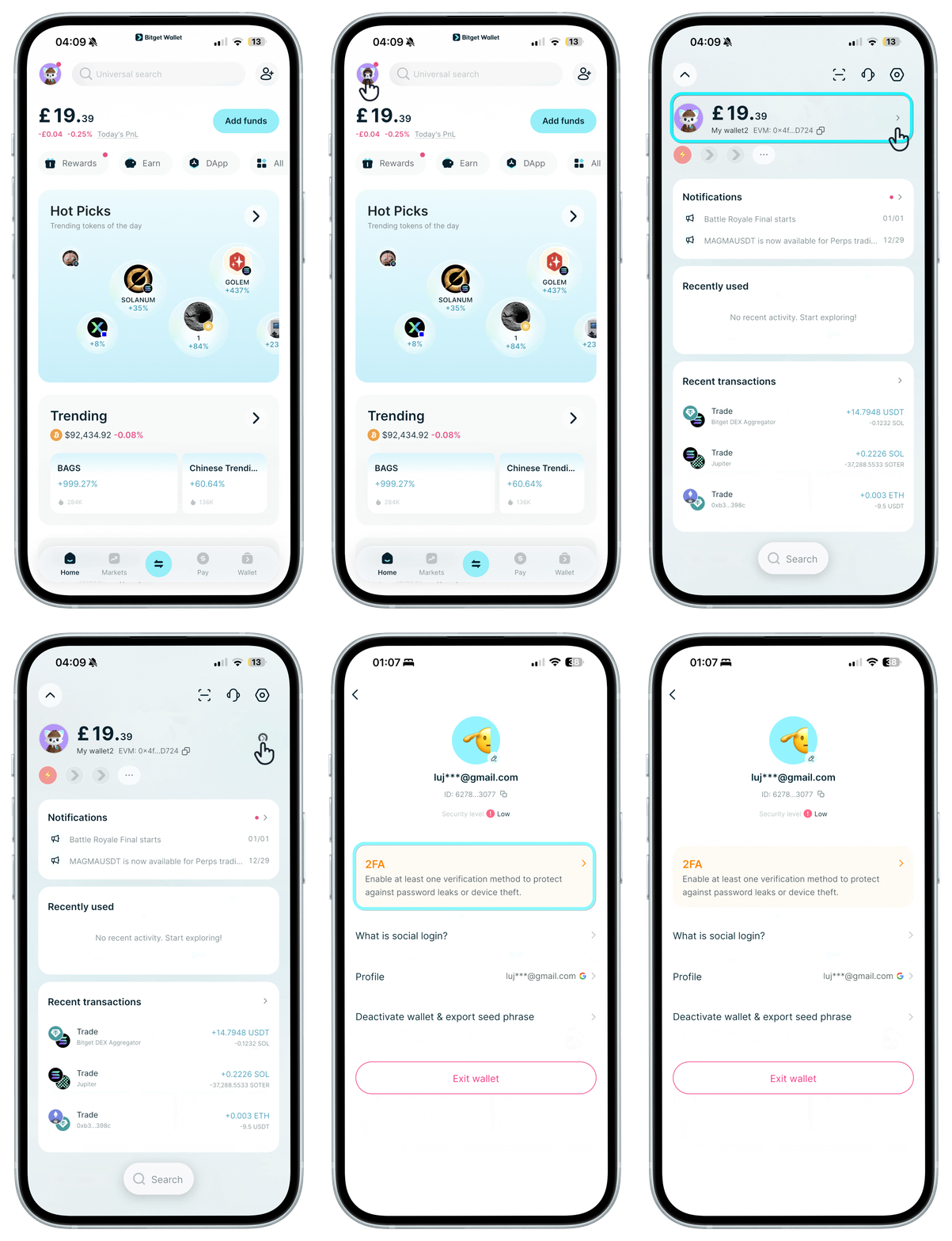
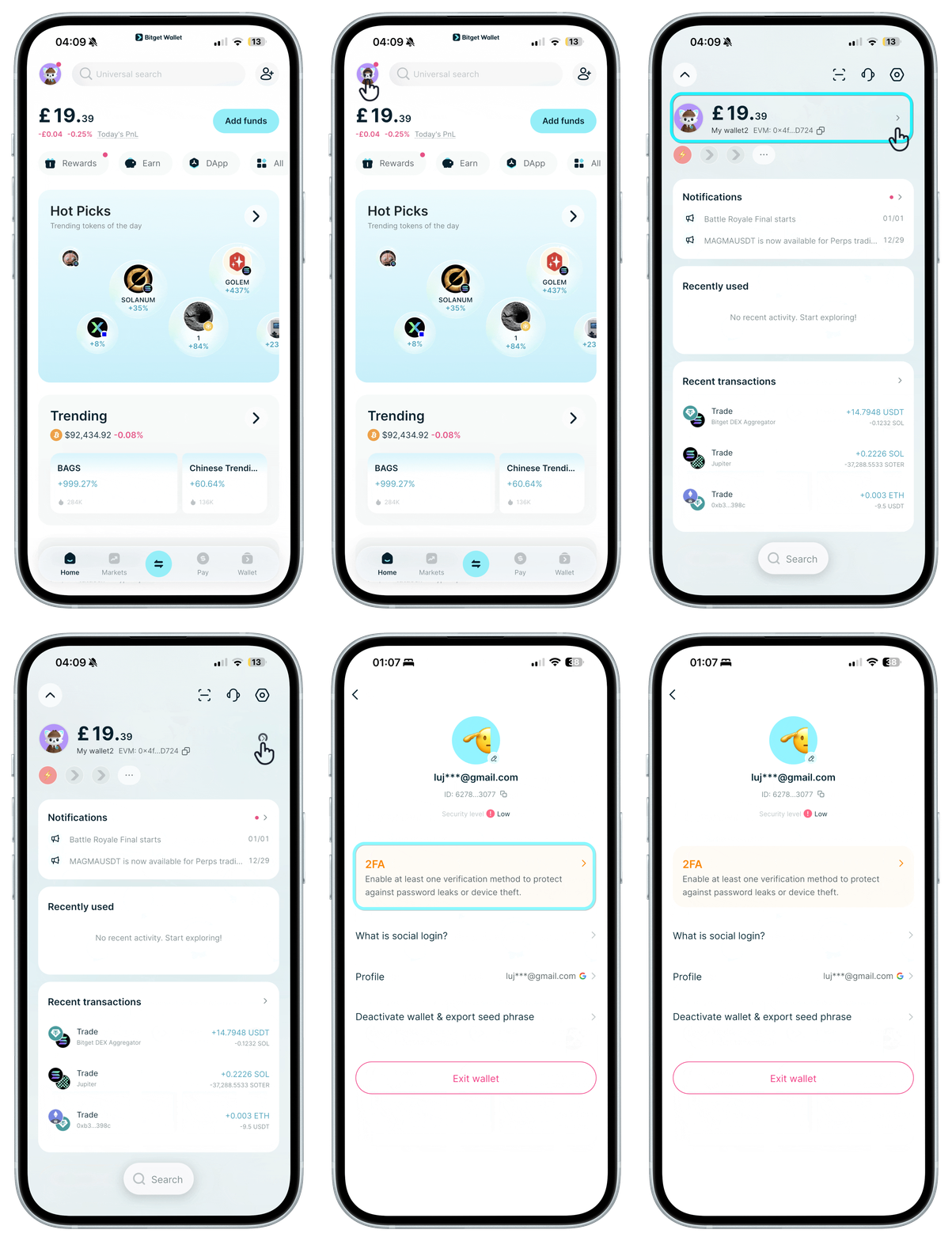
After creating your wallet with a social account, please add at least one 2FA method. You can do this in "Settings" > "My Wallet".
<b>Lost access to your social account?</b> You won't be able to sign in without it. Add a backup 2FA method now, or convert to a seed phrase wallet to access your funds independently. If already locked out, contact Customer Support immediately.
After creating your wallet with a social account, please add at least one 2FA method. You can do this in "Settings" > "My Wallet".
<b>Lost access to your social account?</b> You won't be able to sign in without it. Add a backup 2FA method now, or convert to a seed phrase wallet to access your funds independently. If already locked out, contact Customer Support immediately.
1
/
4
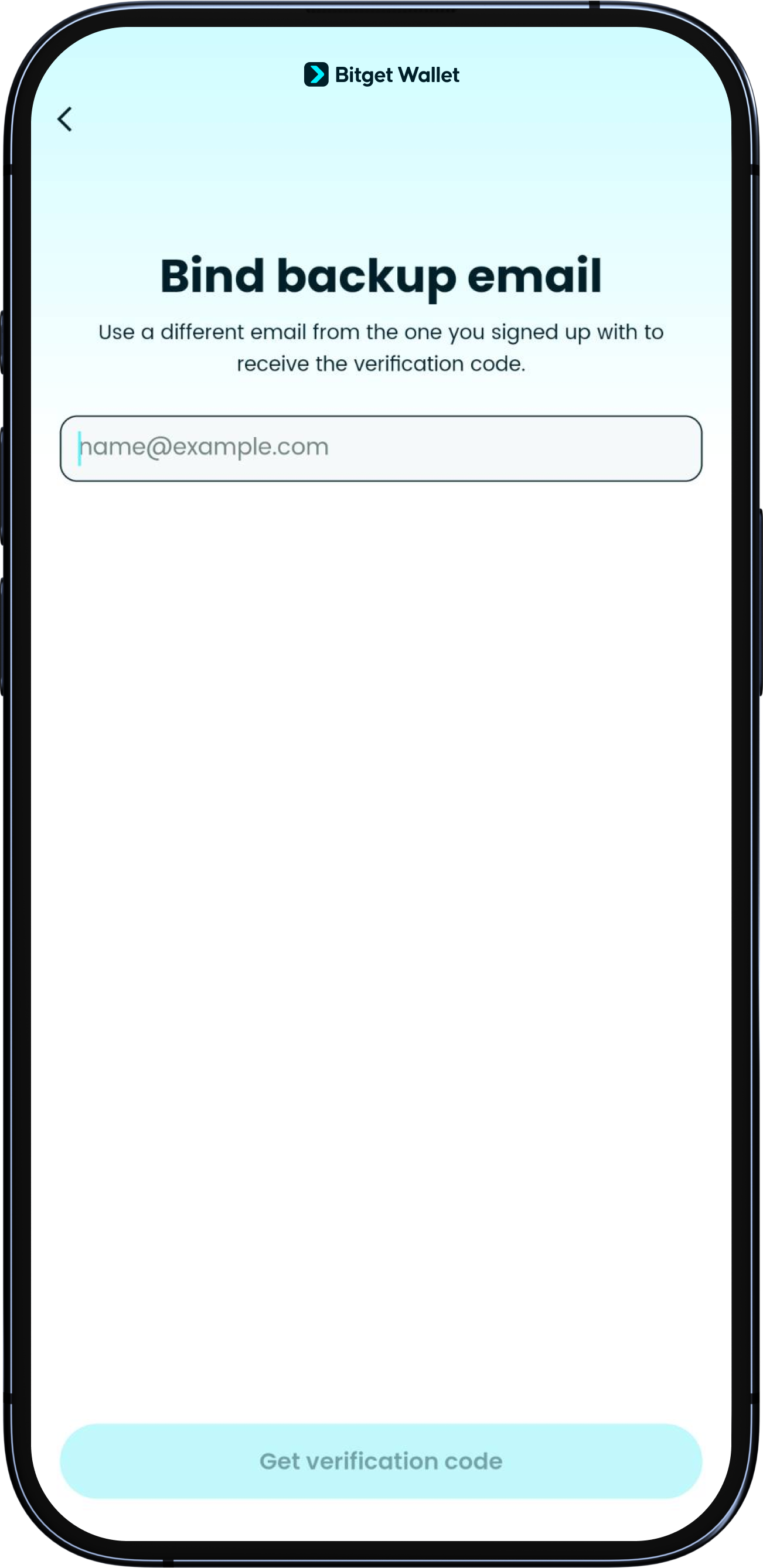
Add backup email
Tap Backup email and follow the instructions to authorize your email as a 2FA.
You can change your backup email at any time.
1
/
4
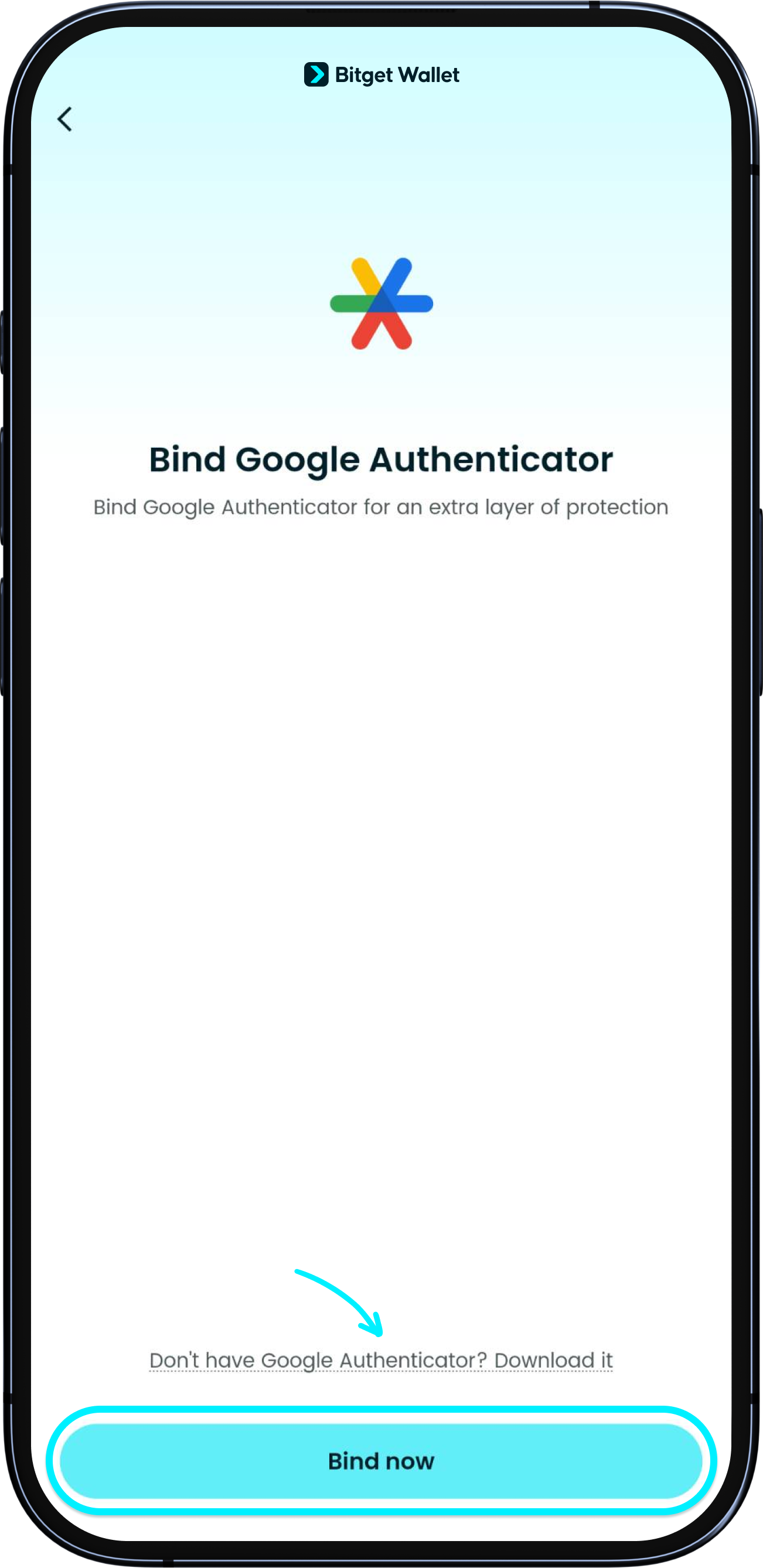
Add Google Authenticator
Download the Google Authenticator app, then on your wallet's page, tap Google Authenticator to view and copy the key.
Follow the instructions in Google Authenticator to connect.
1
/
4
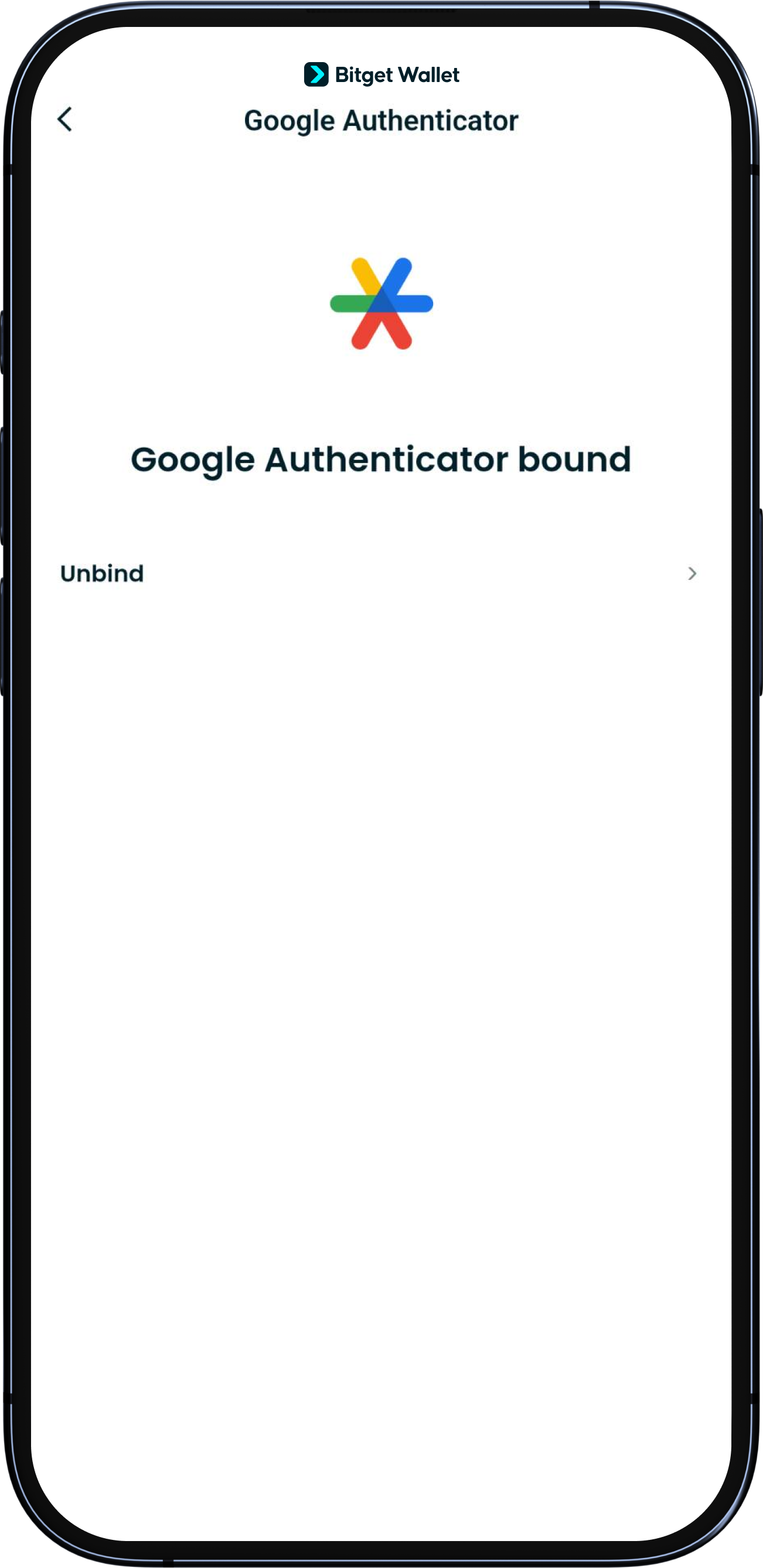
Binding successful
After successful linking, your wallet will show "Bound".
When logging in or completing security checks in the app, you may be asked to enter your Google Authenticator code. Never share it with anyone.
You can also rebind your Google Authenticator if you need to.
